MSTC Vendor Registration: Step-By-Step Seller Signup Guide
Complete your mstc vendor registration with our step-by-step guide. Learn how to map your Class 3 DSC, upload KYC documents, and pay fees to start bidding.
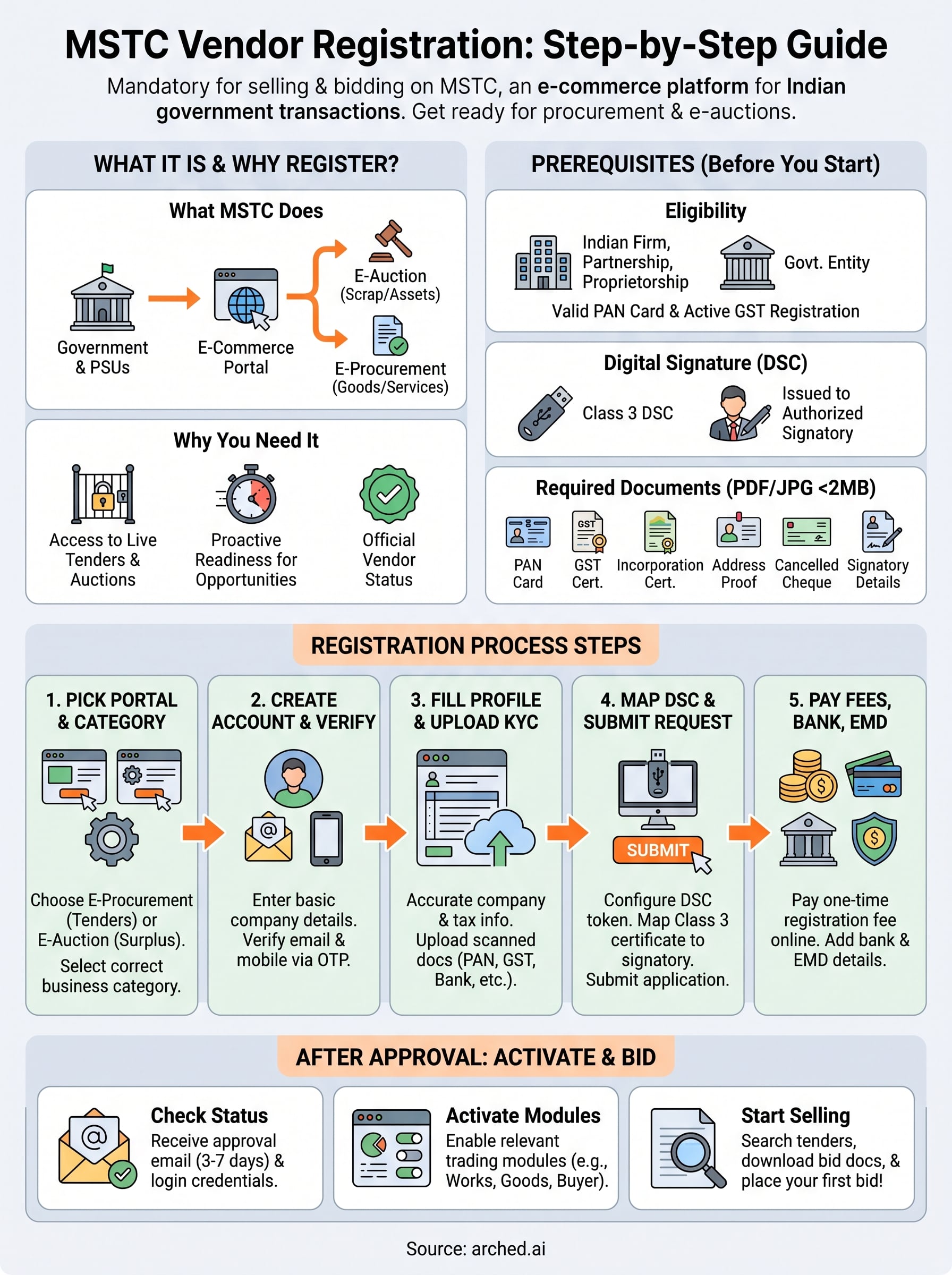
MSTC Limited, originally Metal Scrap Trade Corporation, has grown into one of India's largest government e-commerce platforms, handling everything from e-auctions of surplus assets to procurement of industrial goods and services. If you want to sell on this platform, MSTC vendor registration is the mandatory first step, and getting it right saves you from delays, rejected applications, and missed auction windows.
The registration process itself isn't complicated, but it does involve specific documentation, digital signature requirements, and fee payments that trip up first-time applicants. This guide walks you through every step, from creating your account on the MSTC portal to uploading your documents and activating your seller profile, so you can start bidding and selling without unnecessary back-and-forth.
At Arched, we track MSTC alongside 500+ government procurement portals to help infrastructure firms and contractors find the right opportunities faster. But before our platform can surface relevant MSTC tenders for you, you need an active vendor account on the portal. Consider this guide your starting point, once you're registered, you can use tools like Arched to monitor and match MSTC opportunities against your firm's specific credentials and past project experience.
What MSTC vendor registration is and when you need it
MSTC Limited is a Government of India enterprise under the Ministry of Steel that operates one of the country's largest e-commerce platforms for government transactions. Unlike a typical marketplace, MSTC facilitates both buying and selling for central and state government bodies, public sector undertakings (PSUs), and railways. Vendor registration is the process by which your company officially establishes itself as an approved seller or service provider on the MSTC platform, enabling you to participate in e-auctions, forward auctions, and procurement tenders published there.
What MSTC actually does as a platform
MSTC operates two primary transaction types on its portal. The first is e-auction (reverse and forward), where government bodies sell surplus, scrap, or seized assets and suppliers submit competitive bids. The second is e-procurement, where PSUs and government departments source goods and services from the market. For infrastructure and AEC firms in India, the procurement side holds the most relevant opportunity, covering everything from construction materials and civil contracts to specialized engineering services.
The platform processes transactions worth thousands of crores annually across sectors including railways, defense, steel plants, port trusts, and urban local bodies. Without a verified vendor account, your firm cannot access live tenders, open bid documents, submit responses, or participate in any auction event hosted on the MSTC system.
MSTC is not just a scrap auction site. It actively hosts procurement tenders across infrastructure, industrial supply, and services, making it a meaningful portal for serious contractors and consultants operating in India's public sector.
The two main account types on MSTC
MSTC runs distinct portals for different transaction purposes, and the account type you register for determines which auctions or tenders you can access. Before starting your MSTC vendor registration, confirm which category fits your business.
| Account Type | Typical User | Primary Use |
|---|---|---|
| Buyer/Bidder Account | Companies purchasing surplus assets | Forward auctions for scrap, plant equipment, seized goods |
| Procurement Vendor Account | Suppliers and contractors | Responding to PSU purchase and works tenders |
Most infrastructure firms and contractors need a procurement vendor account, since this is the account type that lets you respond to tender notices published by MSTC's buyer organizations such as SAIL, RINL, NMDC, and various port trusts across India.
When you specifically need to register
You need an active MSTC vendor account whenever a tender or auction opportunity requires participation through the MSTC platform. This is common when PSUs like Steel Authority of India Limited or Rashtriya Ispat Nigam Limited publish procurement notices for construction, civil work, or industrial services through MSTC rather than CPPP or GeM.
Registration also becomes necessary when you spot an MSTC-listed opportunity in a tender alert but your firm lacks an account to open the bid document or submit a response. In practice, waiting until you find a specific tender to register is a poor strategy because approvals can take several business days, and most tender submission deadlines will not pause for your account to clear.
Registering proactively, well before you urgently need the account, puts your firm in a ready position. The window between a tender notification and its closing date is often tight, and firms with an active account in good standing can move directly to document review and bid preparation rather than scrambling through the registration process under time pressure.
Before you start: eligibility, DSC, documents, fees
Before you begin your MSTC vendor registration, confirm that your firm meets the basic eligibility requirements and has all necessary documents ready. Incomplete applications are the most common reason for delays, and gathering everything upfront prevents multiple trips back to the portal to upload missing files.
Who can register
MSTC accepts registrations from Indian registered companies, partnership firms, sole proprietors, and government entities that want to participate as sellers or suppliers on the platform. Foreign entities are generally not eligible for direct vendor registration on the Indian procurement modules. Your firm must hold a valid PAN card and active GST registration to proceed, since both are mandatory fields during the application process and the portal validates them before moving your request forward.
Digital Signature Certificate requirements
A Class 3 Digital Signature Certificate (DSC) is required to complete your registration on MSTC. This is non-negotiable. The DSC must be issued in the name of an authorized signatory of your firm, typically a director, partner, or proprietor. You can obtain a Class 3 DSC from any Certifying Authority licensed by the Controller of Certifying Authorities (CCA) in India, such as eMudhra, Sify, or NSDL.
Procure your DSC well in advance. Processing typically takes two to four business days, and your registration will stall completely without it.
Documents you need to prepare
Having your documents in the correct format before you start saves significant time. MSTC requires scanned copies in PDF or JPG format, generally under 2 MB per file. Prepare the following before opening the registration form:

| Document | Purpose |
|---|---|
| PAN Card | Identity and tax verification |
| GST Registration Certificate | Tax compliance confirmation |
| Certificate of Incorporation or Registration | Legal entity proof |
| Address Proof (utility bill or rent agreement) | Registered office verification |
| Cancelled Cheque or Bank Statement | Bank account validation |
| Authorized Signatory Details | Confirms who can legally bind the firm |
Registration fees
MSTC charges a one-time registration fee to activate your vendor account. The exact fee varies based on the module you are registering for, such as the e-auction module versus the procurement module. Fee structures are updated periodically, so confirm the current amount on the official MSTC portal before proceeding. Payment is made online through net banking or NEFT, and your application moves to review only after the fee payment is successfully confirmed by the system.
Step 1. Pick the right portal and registration type
MSTC operates multiple portals under its platform, each serving a distinct transactional purpose. Before you open any registration form, confirm which portal and registration category aligns with your firm's business activity. Selecting the wrong one wastes your registration fee and forces you to restart the entire process from the beginning.
Identify which MSTC portal applies to your business
MSTC runs two main environments you will encounter during your MSTC vendor registration. The primary procurement portal at mstcecommerce.com covers tenders published on behalf of PSUs and government departments. The second is the e-auction portal, which handles forward auctions for surplus assets, scrap, and seized goods. For most AEC and infrastructure firms in India, the procurement portal is the correct destination.

If you are a contractor or consultant bidding on civil works or supply contracts, go directly to the procurement module, not the e-auction side.
| Portal Type | Primary Use | Relevant For |
|---|---|---|
| E-Procurement | PSU and government supply tenders | Vendors supplying goods or services |
| E-Auction (Forward) | Surplus assets, scrap, seized goods | Buyers purchasing government-released stock |
Confirm your portal choice before you create an account because the login credentials, fee structures, and document requirements differ between the two environments. Mixing them up is a common error that costs applicants several days in rework.
Choose the correct registration category
Once you confirm the right portal, select your registration category carefully. MSTC segments vendors by the type of business activity they perform and, in some cases, by the industry sector or commodity they work within. Getting this wrong can restrict which tenders appear in your dashboard or prevent you from downloading certain bid documents entirely.
For infrastructure and construction firms, the relevant category is typically Works and Civil Contracts or Industrial Goods and Services, depending on your firm's core offering. If your firm covers both supply and civil works, register under the category that represents your highest-value activity first. You can request additional category access after your primary account is approved, but your initial selection determines which tenders appear immediately in your account.
Before clicking "Register," review the available category list on the portal and match each option against your firm's GST business description and past project scope. This alignment prevents the system from flagging a mismatch between your declared activity and the supporting documents you submit during the verification stage.
Step 2. Create your seller account and verify contacts
Once you confirm your portal and registration type, navigate to the official MSTC e-commerce portal and locate the "New Vendor Registration" or "Register as Seller" link on the homepage. Clicking this opens the initial account creation form, which collects your basic identity and contact details before you move to the full company profile. Complete this form carefully because the system uses these entries to trigger verification messages to your registered email address and mobile number.
Enter your basic account details correctly
The first screen of your MSTC vendor registration asks for your firm's legal name exactly as it appears on your PAN card, along with your primary contact person's name, email address, and mobile number. Do not use a personal email for this step. Use a company domain email address tied to your organization, such as bd@yourfirm.com, because MSTC sends all future correspondence including tender alerts, approval notices, and payment confirmations to this address. Changing it later requires a formal request and supporting documentation.
Fill in the mobile number belonging to your authorized signatory since the portal sends an OTP to that number during verification. Numbers registered under a different person's name create problems during the document verification stage, where the portal cross-checks the signatory's identity against submitted documents.
Use contact details that belong to a person who will actively monitor the inbox and mobile. A missed OTP or an unread approval email from MSTC can delay your activation by several business days.
Complete the OTP verification for email and mobile
After submitting the basic details form, the portal sends separate OTP codes to your registered email and mobile number. Both must be verified before your account moves forward. Open your inbox, locate the MSTC verification email, and enter the code in the email verification field. Then switch to the mobile OTP field and enter the code sent via SMS.
Each OTP expires within a set time window, typically five to ten minutes. If either expires before you enter it, use the "Resend OTP" option on the same screen. Do not close the browser or navigate away during this step, as doing so resets the form and forces you to restart from the beginning. Once both OTPs are successfully confirmed, the system generates your provisional account credentials and presents you with a temporary login that you will use to complete the remaining registration steps.
Step 3. Fill company details and upload KYC correctly
After your contact verification is complete, the portal opens the full company profile form, which is the most detailed stage of your MSTC vendor registration. This section collects your firm's legal identity, operational details, and tax information, and it feeds directly into the verification review that MSTC's back-office team conducts before approving your account. Accuracy at this stage is critical; mismatches between what you enter here and what appears on your uploaded documents are the primary reason applications get flagged and sent back.
Enter your company profile information
Start by entering your firm's legal name exactly as registered with the Ministry of Corporate Affairs or your state's registrar, including correct capitalization and punctuation. Follow this with your registered office address, company type (private limited, partnership, proprietorship, LLP), and your PAN number and GSTIN. The portal runs an automated check against the GST database, so confirm that your GST registration is active and your business name on the GST certificate matches the name you type into this form. Any variation, even a missing "Private Limited" suffix, causes the validation to fail.
Fill in your authorized signatory's name, designation, and contact details in the designated fields. This person is the individual whose DSC you will map in the next step, so their details here must match the DSC certificate precisely.
Double-check that the PAN entered belongs to your firm, not to an individual director, unless your firm type is a proprietorship.
Upload KYC documents in the correct format
Each document must be a clear, legible scan in PDF or JPG format, sized below 2 MB per file. Blurry photos taken on a phone in poor lighting consistently fail the verification check. Use a flatbed scanner or a high-resolution scan app and confirm each file opens cleanly before uploading.
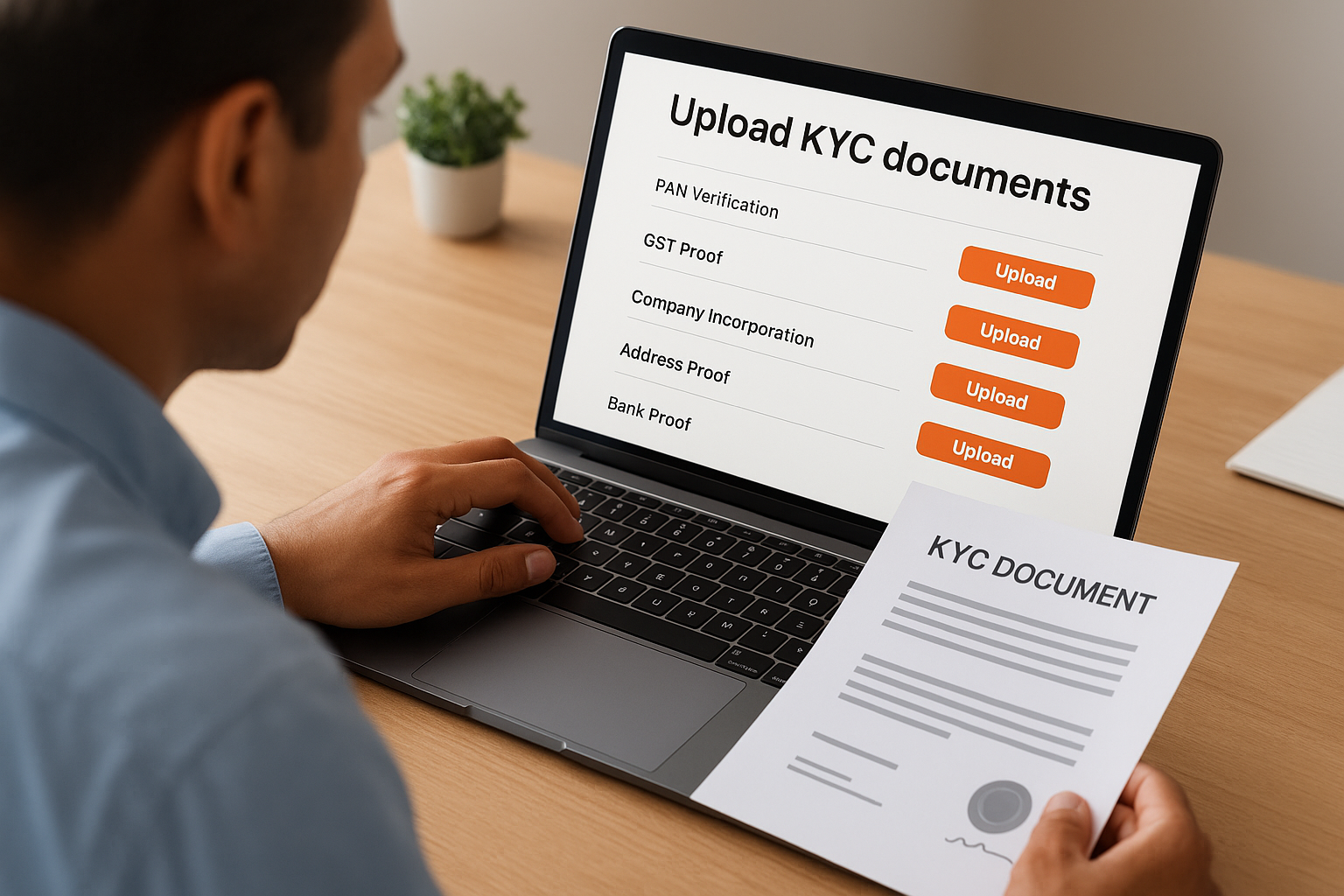
Upload the following documents against each corresponding field in the form:
| Field Label on Portal | Document to Upload |
|---|---|
| PAN Verification | Company PAN Card (both sides if applicable) |
| GST Proof | GST Registration Certificate |
| Company Incorporation | Certificate of Incorporation or Partnership Deed |
| Address Proof | Latest utility bill or registered lease agreement |
| Bank Proof | Cancelled cheque with pre-printed firm name and IFSC |
Once all fields are filled and every document is uploaded, review the entire form from the top before clicking "Save and Proceed." The portal does not allow edits to submitted company details without raising a formal amendment request, so a single review pass here saves significant time later.
Step 4. Map your DSC and submit the registration request
With your company profile saved and your KYC documents uploaded, the next stage of your MSTC vendor registration requires you to attach your Digital Signature Certificate to the account. This step legally binds your firm's identity to the portal and allows the system to authenticate your submissions going forward. Without a mapped DSC, you cannot submit the registration request, sign bid documents, or authorize any transactions on the platform.
Install and configure your DSC token
Before the portal can read your DSC, your browser and system must be properly configured to detect the physical token. Plug your DSC USB token into your computer, then confirm that the signing utility or driver software recommended by MSTC is installed and running. MSTC typically requires the use of a Java-based signing component or a browser extension that interfaces with your token. Use Internet Explorer or a Chromium-based browser in compatibility mode if the portal's DSC module does not load correctly in a standard Chrome window.

Once the token is recognized by the system, the portal displays a "Map DSC" button on your registration dashboard. Click it. The system prompts you to select the certificate from your token that corresponds to your authorized signatory. Choose the Class 3 certificate issued in the signatory's name, confirm the selection, and enter your DSC token PIN when prompted. The portal then displays a confirmation message showing the certificate holder's name and validity period. Verify that both match your authorized signatory's details before proceeding.
If the DSC name shown does not exactly match the signatory name entered in your company profile, stop and correct the profile before completing the mapping step.
Submit your registration request for review
After your DSC is successfully mapped, the portal activates the "Submit Registration Request" button on your application dashboard. Before clicking it, run through this final checklist to avoid a rejection on first review:
- Company name on the form matches PAN and GST certificate exactly
- All uploaded documents are legible and below the 2 MB size limit
- Authorized signatory details match the mapped DSC certificate
- Registered email and mobile number belong to an active, monitored contact
- Correct registration category is selected for your firm's business activity
Click "Submit" only after confirming every item above. The portal generates a unique application reference number immediately after submission. Save this number, since you will need it to track your application status and reference it in any follow-up correspondence with MSTC's vendor support team.
Step 5. Pay fees, add bank details, and set up EMD
Once your registration request is submitted, the portal directs you to the payment and bank configuration stage, which is the final step before your application enters MSTC's review queue. Skipping or partially completing this stage means your MSTC vendor registration sits in an incomplete state and no reviewer picks it up, regardless of how well you completed the earlier steps.
Pay the registration fee online
The portal displays the applicable registration fee based on the module you selected in Step 1. Navigate to the payment section of your application dashboard and select your preferred payment method. MSTC accepts online payment through net banking and NEFT transfer, with most applicants choosing net banking for instant confirmation.
Complete the fee payment in a single session. If you close the payment window before the transaction confirms, the portal may record the payment as pending and require you to contact MSTC support to reconcile the entry manually.
After a successful payment, the portal generates a payment receipt with a transaction reference number. Download and save this receipt immediately. If the application is ever queried during review, this document serves as your proof that the fee was settled on time.
| Payment Method | Processing Time | Confirmation |
|---|---|---|
| Net Banking | Instant | On-screen confirmation + email |
| NEFT Transfer | 1 to 2 business hours | Email notification after bank reconciliation |
Add your bank account details
Your bank account information is used by MSTC for payment settlements and refund processing across future transactions. The portal asks for your firm's bank account number, the account holder name as it appears on the account, your bank's IFSC code, and branch details. Enter these exactly as they appear on the cancelled cheque you uploaded in Step 3. Any mismatch triggers a manual verification flag that delays your approval.
Configure your EMD account
The Earnest Money Deposit (EMD) is a refundable security deposit that MSTC collects from vendors before they participate in auctions or submit bids on procurement tenders. During registration, you set up your EMD account details so that future deposits can be credited and refunded without manual intervention.
Enter the same bank account details you provided in the previous field. Confirm the IFSC code is correct since refunds go directly to this account after an auction closes or a bid is unsuccessful. Once EMD details are saved, the portal marks your application as fully complete and moves it into the active review queue for MSTC's verification team.
After approval: activate modules and start selling
MSTC's verification team typically reviews completed applications within three to seven business days. Once your MSTC vendor registration clears, you receive an approval email at the registered address containing your confirmed login credentials and a list of modules your account is authorized to access. Log in immediately, change your temporary password to a secure one, and confirm that your firm's name and registered details appear correctly on your account dashboard before doing anything else.
Check your approval notification and account status
Your approval email includes a direct link to your active vendor dashboard and specifies which transactional modules are enabled. Open the dashboard and navigate to the "Profile" or "My Account" section to verify that your company name, GSTIN, PAN, and bank details are all displayed correctly. If any field shows a mismatch or displays a placeholder rather than your submitted data, raise a ticket with MSTC's vendor support team immediately, referencing your application number from Step 4.
Review your account details within 24 hours of receiving the approval notification. Errors caught early are corrected faster than those discovered mid-bid.
Activate your trading modules
Not all modules activate automatically after approval. Depending on the registration category you selected in Step 1, you may need to manually enable specific procurement or e-auction modules from within your dashboard. Navigate to the "Module Activation" or "Services" tab and review the list of available modules against your firm's business activity.
| Module | Activate If |
|---|---|
| E-Procurement (Works) | Your firm bids on civil or construction tenders |
| E-Procurement (Goods) | Your firm supplies materials or industrial products |
| E-Auction (Buyer) | Your firm purchases surplus or scrap assets |
Select each relevant module, confirm the activation, and check whether a separate module-level fee applies. Some modules require an additional payment before they go live. Pay any outstanding module fees immediately to avoid sitting on an account that looks active but cannot access live tender documents.
Place your first listing or bid
With your modules active, run a search on the portal using your core service or commodity keywords to see live tenders currently open for bidding. Download at least one bid document to confirm that your account permissions are working correctly. Before submitting a response to any tender, verify that your DSC token is plugged in, recognized by the portal, and within its validity period, since an expired DSC blocks submission regardless of how complete your bid response is.
Next steps
Your MSTC vendor registration is now complete, and your account is ready to access live tenders and auctions across India's public procurement landscape. The steps in this guide cover every stage from portal selection and DSC mapping to fee payment and module activation. Follow them in order, keep your documents prepared in advance, and your application will clear review without unnecessary delays.
Registering on MSTC is a strong start, but it is only one portal among hundreds that publish relevant opportunities for infrastructure and AEC firms in India. Monitoring every portal manually takes hours your team does not have, and missed tender windows cost real revenue. Arched tracks MSTC alongside 500+ other government portals, matches opportunities against your firm's specific credentials, and flags only the tenders your firm can actually win. See how Arched works for your firm and stop leaving contracts on the table.