CPPP Tender Search: Step-By-Step Guide To Finding Tenders
Master the cppp tender search with this guide. Learn to use advanced filters, verify eligibility, and track updates to win Indian government contracts.
The Central Public Procurement Portal (CPPP) lists thousands of tenders from central government ministries and departments, but running an effective CPPP tender search is far less straightforward than it should be. Between inconsistent naming conventions, vague category filters, and tender documents buried across multiple tabs, even experienced bid managers end up spending hours just trying to find what's relevant.
The frustration is real. You search for "road construction," and get flooded with results that don't match your firm's registration, geography, or qualification criteria. Or worse, you miss a high-value opportunity entirely because it was listed under an unexpected category or agency name. When you're monitoring CPPP alongside dozens of other state and central portals, manual searching doesn't scale.
This guide walks you through the CPPP tender search process step by step, from accessing the portal and setting up filters to reading tender details and downloading documents. We've also included practical tips to avoid common mistakes that cause contractors to overlook good-fit opportunities. And if you're looking to move beyond manual portal checks altogether, we'll show you how Arched automates tender discovery across CPPP and 500+ other government procurement portals, matching opportunities to your firm's actual credentials and experience, so you spend less time searching and more time winning.
What CPPP is and what you can find on it
The Central Public Procurement Portal (CPPP) is the Government of India's official e-procurement platform, managed by the National Informatics Centre (NIC) under the Ministry of Finance. Its primary purpose is to provide a single, centralized location for publishing tender notices from central government ministries, departments, and their attached offices. When you run a CPPP tender search, you're searching across a database that aggregates procurement notices published directly by government entities, making it one of the most authoritative sources for central government contracts in India.
The government departments that publish on CPPP
CPPP receives tender publications from a wide range of central government bodies. These include ministries such as the Ministry of Road Transport and Highways, Ministry of Jal Shakti, and Ministry of Housing and Urban Affairs, along with their subordinate agencies. Public sector undertakings like NHBRC, NBCC, and various central public works departments also publish on CPPP, as do autonomous institutions under central government control.
The portal lists tenders from over 10,000 organizations across all central government entities. Each organization publishes independently, which means naming conventions and document formats vary significantly from one department to another. This inconsistency is one of the main reasons why searching by keyword alone produces unreliable results and causes experienced bid managers to miss relevant opportunities.
What tender types and categories are available
CPPP covers a broad range of procurement categories. The most common types you'll encounter on the portal include:
- Works tenders: Construction, civil engineering, road projects, bridges, irrigation, and infrastructure development
- Goods tenders: Equipment, materials, machinery, and supplies for government departments
- Services tenders: Consultancy, operation and maintenance, IT services, and facility management contracts
- Composite tenders: Combinations of works, goods, and services bundled under a single contract
The portal also classifies tenders by estimated contract value, ranging from small departmental purchases worth a few lakhs to large infrastructure contracts running into hundreds of crores. You can filter by tender category, organization type, and closing date, though the category taxonomy on CPPP uses broad classifications that don't always map cleanly to specific industry verticals.
Most high-value infrastructure tenders on CPPP fall under the "Works" category, but government organizations sometimes classify road and bridge projects under "Civil Works," "Infrastructure," or a department-specific code, so relying on a single category filter will cause you to miss relevant opportunities.
How CPPP fits into India's broader procurement landscape
CPPP is central-government-focused, which means it operates separately from state-level procurement portals. If your firm bids on state government contracts, you'll need to check platforms like state-specific e-procurement portals for Tamil Nadu, Maharashtra, Rajasthan, or others independently. CPPP does not aggregate state tenders, and this boundary catches many contractors off guard when they assume central portal coverage is sufficient.
Within the central procurement ecosystem, CPPP also operates alongside the Government e-Marketplace (GeM), which handles direct procurement of standardized goods and services. GeM and CPPP serve different procurement needs: GeM is transactional and catalog-based, while CPPP handles competitive bidding for larger, complex contracts. For infrastructure and construction firms, CPPP is typically where the most relevant high-value opportunities appear.
Understanding these boundaries matters because it clarifies why a thorough tender discovery strategy cannot rely on CPPP alone. Even for central government contracts, some agencies use their own portals or publish through NIC-managed systems outside CPPP. Bid managers working on serious business development pipelines treat CPPP as one critical source among many, rather than a complete solution by itself.
Before you start: details to keep handy
Running a productive CPPP tender search starts before you open the portal. If you go in without a clear picture of your firm's credentials and target criteria, you'll waste time reading through tenders that don't match your eligibility, or you'll apply filters so broad that the results become unmanageable. Spending five minutes organizing the right details in advance will save you significantly more time once you're actually inside the portal and working through results.
Your firm's registration and credential details
Most central government contracts published on CPPP specify minimum annual turnover, prior experience in similar work, and valid registration certificates as qualifying criteria. Eligibility is non-negotiable on these tenders, so you need to know your own numbers before you start opening documents. Have the following information within reach:
- PAN and GST registration numbers of your firm
- Registration class and category (e.g., Class I Civil Works contractor under CPWD or a relevant state PWD registration)
- Estimated value of the three largest completed projects in your domain, as these are frequently cited in prior experience clauses
- EMD and performance security capacity, meaning the approximate deposit amounts your firm can commit to at any given time
- Valid digital signature certificate (DSC) if you plan to download bid documents or submit any expressions of interest
Many tender documents on CPPP require you to confirm eligibility against financial thresholds before you can access the full BOQ, so knowing your turnover and past project values upfront prevents you from wasting time on tenders you cannot qualify for.
Key search parameters to define before you open the portal
Knowing your credentials is only half the preparation. You also need to define your target search parameters before you start, because the portal's filters work best when you apply multiple criteria together rather than relying on keyword searches alone. Think through the following and write them down:
| Parameter | What to decide |
|---|---|
| Work category | Works, Goods, Services, or Composite |
| Estimated contract value range | Minimum and maximum tender value in INR |
| Geographic scope | State or region where your firm operates |
| Closing date window | How far ahead you want to look (30, 60, or 90 days) |
| Organization type | Ministry, PSU, autonomous body, or specific department |
Defining these parameters in advance means you can apply filters immediately and systematically once you're inside the portal, rather than adjusting them reactively after seeing an unfiltered list of hundreds of results. It also reduces the chance that you'll spend time opening low-relevance tenders simply because they appeared near the top of a broad search.
Step 1. Open the official CPPP tender portal
Before you can run any CPPP tender search, you need to confirm you're on the correct government portal. Several unofficial aggregator sites mimic the appearance of CPPP or display its data with delays, and relying on these means you may be working with outdated information or missing newly published notices.
The official URL and what to look for on the homepage
The official CPPP portal is hosted at eprocure.gov.in/cppp. Type this URL directly into your browser rather than searching for it on a search engine, as sponsored links and third-party directories can send you to the wrong page. Once the page loads, confirm you see the NIC (National Informatics Centre) branding and the Government of India header at the top. These visual markers confirm you're on the authentic portal.
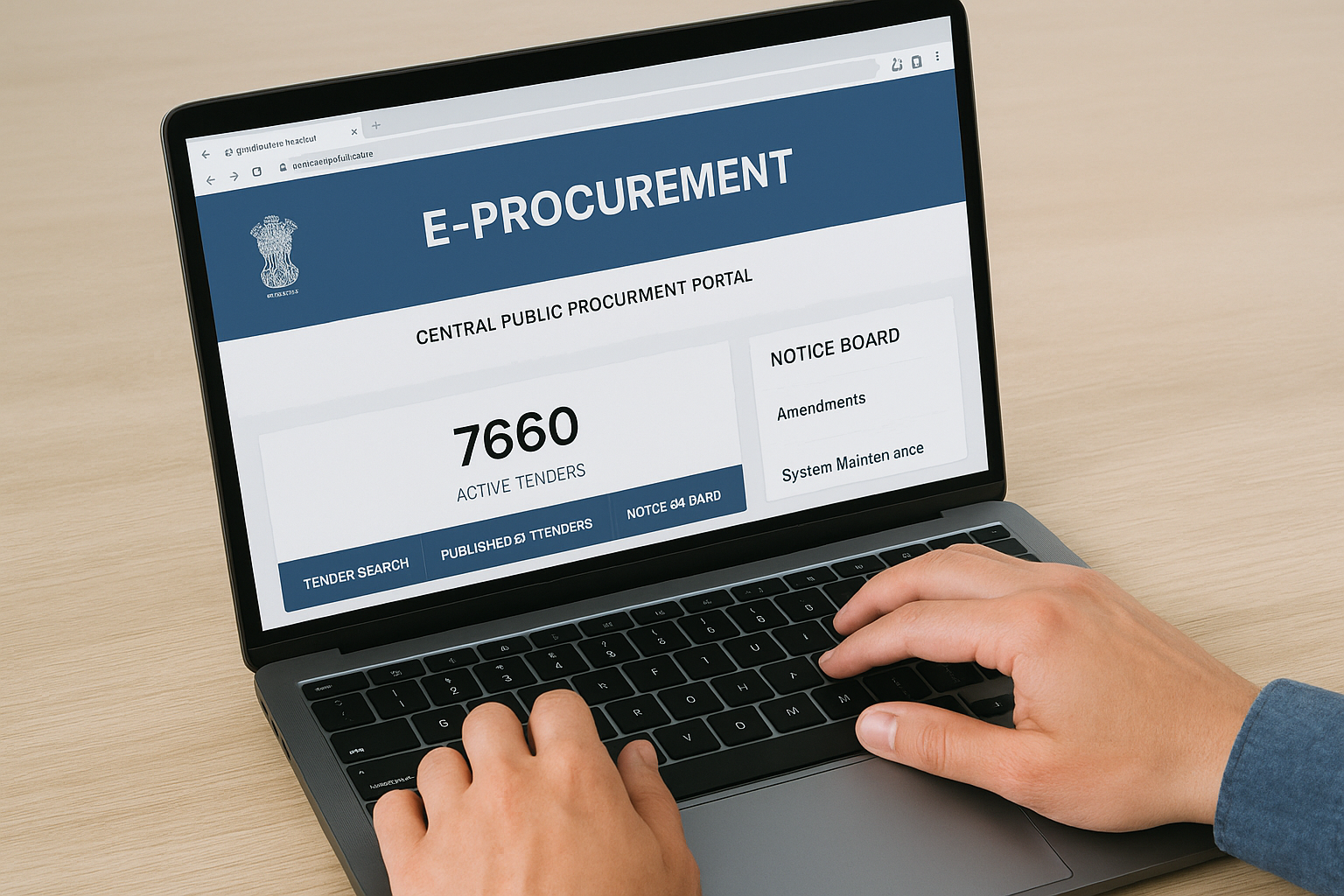
The homepage displays a summary count of active tenders, along with a navigation bar that includes links to tender search, published tenders, and organization-wise listings. You'll also see a notice board section on the right side that shows recent updates, amendments (corrigenda), and system announcements. Checking this section briefly before you start searching is a good habit, as it sometimes flags portal maintenance windows or changes to submission procedures that could affect your work.
Always access CPPP directly through the official URL rather than bookmarking a search results page, as the portal's session structure can produce errors when you land mid-portal without a fresh homepage load.
How to navigate to the tender search section
From the CPPP homepage, follow these steps to reach the tender search interface:
- Click "Tender Search" in the top navigation bar. This takes you to the main search page, which is separate from the "Published Tenders" listing.
- Look at the top of the search page for two tabs: "Basic Search" and "Advanced Search." The Basic Search only allows keyword and organization filters. Use Advanced Search from the start for more meaningful results.
- On the Advanced Search tab, you will see fields for organization name, tender category, estimated value, location, and closing date range. Leave the keyword field blank initially and apply structured filters first; this approach returns cleaner results than starting with a keyword.
- Scroll to the bottom of the search form and click the "Search" button to load results.
Taking this structured path to the search interface, rather than using any on-page shortcut links, ensures you load the full filter set and avoid the limited results that the Basic Search tab produces.
Step 2. Use advanced search to narrow results
The Advanced Search tab is where a CPPP tender search becomes genuinely useful. The Basic Search tab limits you to keyword matching, which produces inconsistent results because different departments use different terminology for similar work. Advanced Search lets you stack multiple structured filters simultaneously, giving you a much tighter and more actionable result set from the start.
How to fill in the advanced search fields
Each field in the Advanced Search form serves a specific filtering purpose, and knowing what to enter in each one prevents you from either over-filtering (too few results) or under-filtering (too many irrelevant ones). Fill in the fields using the following approach:

| Field | What to enter | Practical tip |
|---|---|---|
| Organisation Name | Leave blank unless targeting a specific ministry | Filling this too early removes results from subordinate agencies under that ministry |
| Tender Category | Select "Works" for civil and infrastructure contracts | Do not select "All" if you have a clear domain |
| Product Category | Use broad codes like "Civil Construction" or "Road Works" | Avoid highly specific codes on your first search pass |
| Location | Select your target state or "Central" for national contracts | Leave blank only if your firm operates across multiple regions |
| Estimated Cost (Min/Max) | Enter your firm's qualifying range in INR | Set the minimum at 70% of your smallest qualifying project value |
| Bid Submission Closing Date (From/To) | Set a 45-60 day forward window | Shorter windows miss tenders published with long bid periods |
Once you've filled in the fields, click "Search" and wait for the results table to load. The portal sometimes takes 10-15 seconds to return results depending on server load, so avoid clicking Search multiple times in quick succession.
If your results return fewer than 10 tenders, widen your estimated cost range first before removing other filters, as value range is the most restrictive field in the form.
Reading and refining your results
The results table displays each tender with its title, organization name, estimated value, and bid submission closing date in columns. Sort by closing date immediately using the column header so that urgent tenders appear at the top. Do not sort by estimated value on your first pass, as this buries mid-value contracts that may actually be your best-fit opportunities.
Scan the tender titles and organization names across the first two pages before opening any individual notice. This gives you a quick read of what's available and lets you identify patterns, for example, whether a specific ministry is running a batch of similar projects, before you spend time reviewing documents in detail.
Step 3. Browse tenders by closing date and category
Once your Advanced Search results load, resist the temptation to open the first tender that looks promising. The results table defaults to showing tenders in the order they were published, which puts older, near-closing notices at the top. Before you evaluate a single notice, spend two minutes reorganizing the view so you're working through results in a logical sequence that reflects your actual priorities.
Sorting results by closing date
Click the "Bid Submission Closing Date" column header to sort results in ascending order, putting the most urgent deadlines at the top. This immediately surfaces tenders that require action within the next 7 to 14 days, which is critical if you're running a cppp tender search as part of an active business development cycle rather than just browsing. A tender that closes in 72 hours and matches your credentials is worth far more of your attention than one that closes in 90 days, even if the latter has a higher estimated value.
Do not dismiss tenders with closing dates more than 60 days away as low priority. Long bid windows often signal high-value or technically complex contracts where preparation time matters, and discovering them early gives you a real advantage.
Work through the sorted list in two passes. On your first pass, flag every tender where the title, organization, and estimated value fall within your target range. Do not open documents yet. On your second pass, open only the flagged notices and scan the key eligibility criteria. This two-pass approach stops you from spending time reading irrelevant documents during what should be a browsing stage.
Filtering by category to reduce irrelevant results
The category filter on CPPP works best when you treat it as a narrowing tool rather than a discovery tool. If you selected "Works" in Advanced Search but your results still include unrelated procurement notices, apply a secondary filter using the "Product Category" dropdown on the results page. For infrastructure firms, narrowing to codes like "Civil Construction," "Road and Highway Works," or "Irrigation and Drainage" will cut out a significant portion of irrelevant entries.
When you filter by category, check whether the result count drops below 15 tenders. If it does, remove the product category filter and stay with the broader works category instead. Running multiple narrower searches by rotating through relevant product category codes, rather than applying all of them at once, gives you a more complete picture of what is actually available for your firm.
Step 4. Open a tender notice and verify eligibility
After sorting and filtering your CPPP tender search results, click on a tender title to open the full notice. The portal loads a summary page first, not the detailed tender document. This summary page is where you make your first eligibility decision before downloading any files, which saves time if the notice turns out to be an obvious mismatch.
What to look for in the tender notice header
The summary page displays several critical fields at the top before any attachments appear. Scan these fields in order before doing anything else:
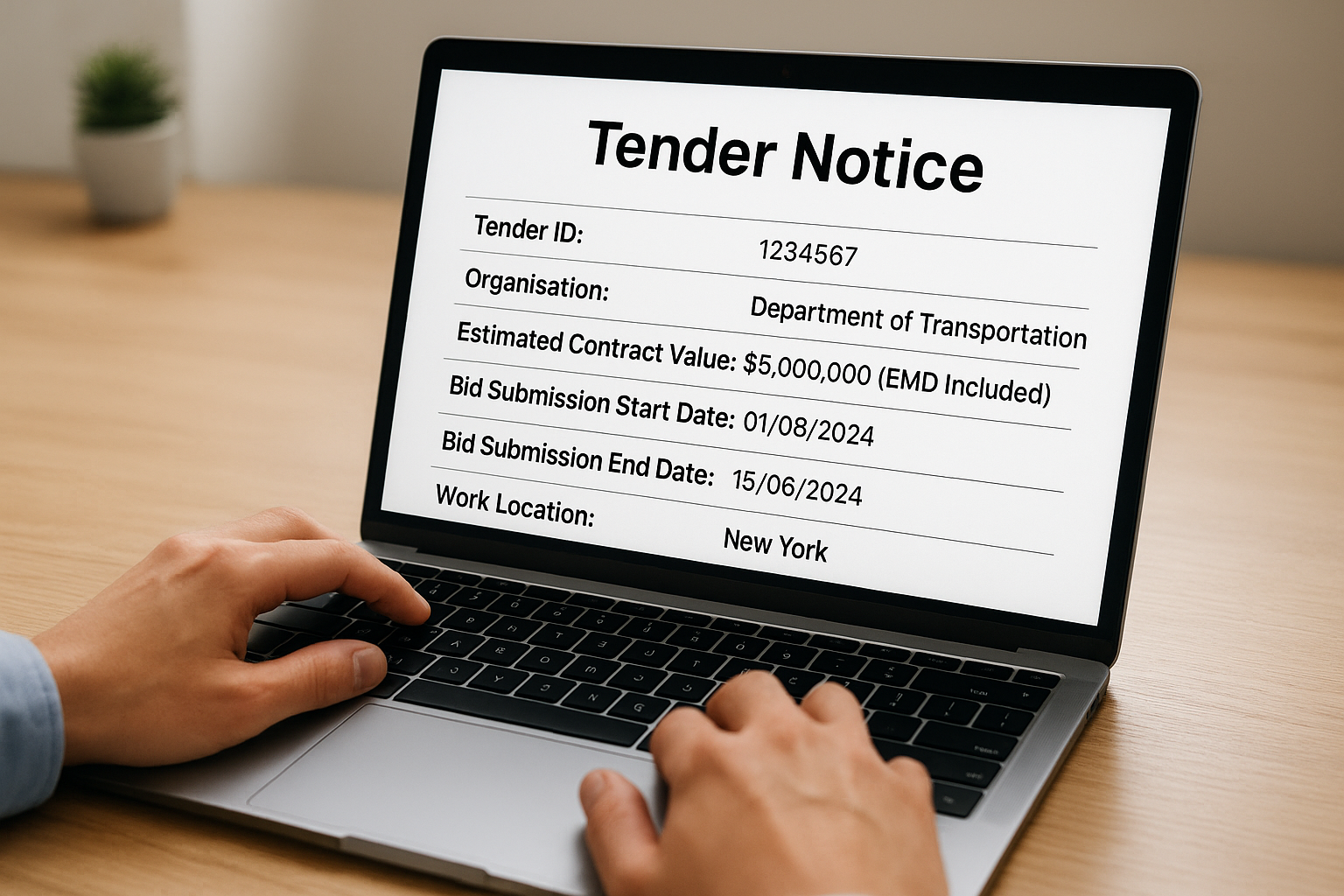
- Tender ID and reference number: Note this for tracking and document requests
- Organisation name and department: Confirms which entity is procuring and which portal rules apply
- Estimated contract value (EMD included): Compare immediately against your firm's qualifying thresholds
- Bid submission start and end dates: Confirms whether you have enough time to prepare a complete bid
- Work location / delivery location: Verifies whether the contract falls within your operational geography
If any of these fields immediately disqualify the tender, close the notice and move to the next one. Do not download documents for a tender you cannot qualify for, as this creates unnecessary clutter in your bid tracking process.
How to check eligibility criteria against your firm
Scroll past the header fields to find the tender document attachments, usually labeled as NIT (Notice Inviting Tender) or RFP. Download and open the main document to locate the eligibility or qualifying criteria section, which typically appears within the first 10 pages. Work through the following checklist against your firm's credentials:
| Eligibility Requirement | Where to Find Your Data | Pass/Fail |
|---|---|---|
| Minimum annual turnover (e.g., 2x estimated cost) | Audited financial statements, last 3 years | |
| Similar work experience (value and scope) | Completion certificates from past projects | |
| Valid contractor registration class | PWD or CPWD registration certificate | |
| EMD / bid security amount | Bank guarantee or fixed deposit capacity | |
| GST and PAN registration | Company registration documents |
If you meet at least 80% of the listed criteria, do not discard the tender without first reading the full eligibility clause, as some conditions allow joint ventures or subcontracting arrangements that can cover gaps in your firm's current credentials.
Work through the eligibility checklist for every shortlisted tender before moving to document download and bid preparation. This systematic approach eliminates tenders you cannot win and focuses your preparation time on the opportunities where your firm has a genuine shot.
Step 5. Track updates, corrigenda, and results
A CPPP tender search does not end once you've identified a shortlist and downloaded bid documents. Government tenders change frequently after publication. Departments issue corrigenda to modify eligibility criteria, extend closing dates, revise estimated values, or clarify technical specifications. Missing these updates means you might submit a bid based on outdated requirements, which can lead to disqualification even when your firm is otherwise eligible.
How to find corrigenda and amendments
CPPP publishes corrigenda directly on the individual tender notice page. To check for updates, open the tender notice you're tracking and scroll to the bottom of the summary page. Look for a section labeled "Corrigendum" or "Amendment." Each update appears as a separate entry with its publication date and a link to the revised document.
Check every active tender on your shortlist for corrigenda at least once every 48 hours during the bid preparation period, as some departments issue multiple amendments within the same week.
Build a simple tracking log for every tender you're actively pursuing. A basic spreadsheet works well for this. Include the following columns to stay organized:
| Column | What to record |
|---|---|
| Tender ID | Unique CPPP reference number |
| Organization | Department or ministry name |
| Original closing date | Date from initial notice |
| Latest closing date | Updated after any corrigendum |
| Corrigendum count | Number of amendments issued |
| Last checked | Date you last reviewed the notice |
| Status | Active, submitted, withdrawn |
Update this log every time you check a notice. Tracking the corrigendum count tells you how actively a department is modifying a tender, which is useful context when estimating how much preparation time you actually have before the final deadline.
Checking tender results and award notices
After a bid submission window closes, CPPP publishes the result or award notice on the same tender page where the original notice appeared. Navigate back to the tender using its Tender ID and scroll to the "Award Details" section. This section shows the name of the winning bidder and the awarded contract value, which gives you two useful data points: confirmation of your competition and a benchmark for pricing future bids.
Reviewing award notices for tenders you did not win is one of the most direct ways to understand where your firm's bid pricing or qualifications fell short. Look at the awarded value relative to the estimated contract value to gauge how competitively the market priced similar work, and use that data to refine your approach on the next comparable tender.
Wrap-up and next steps
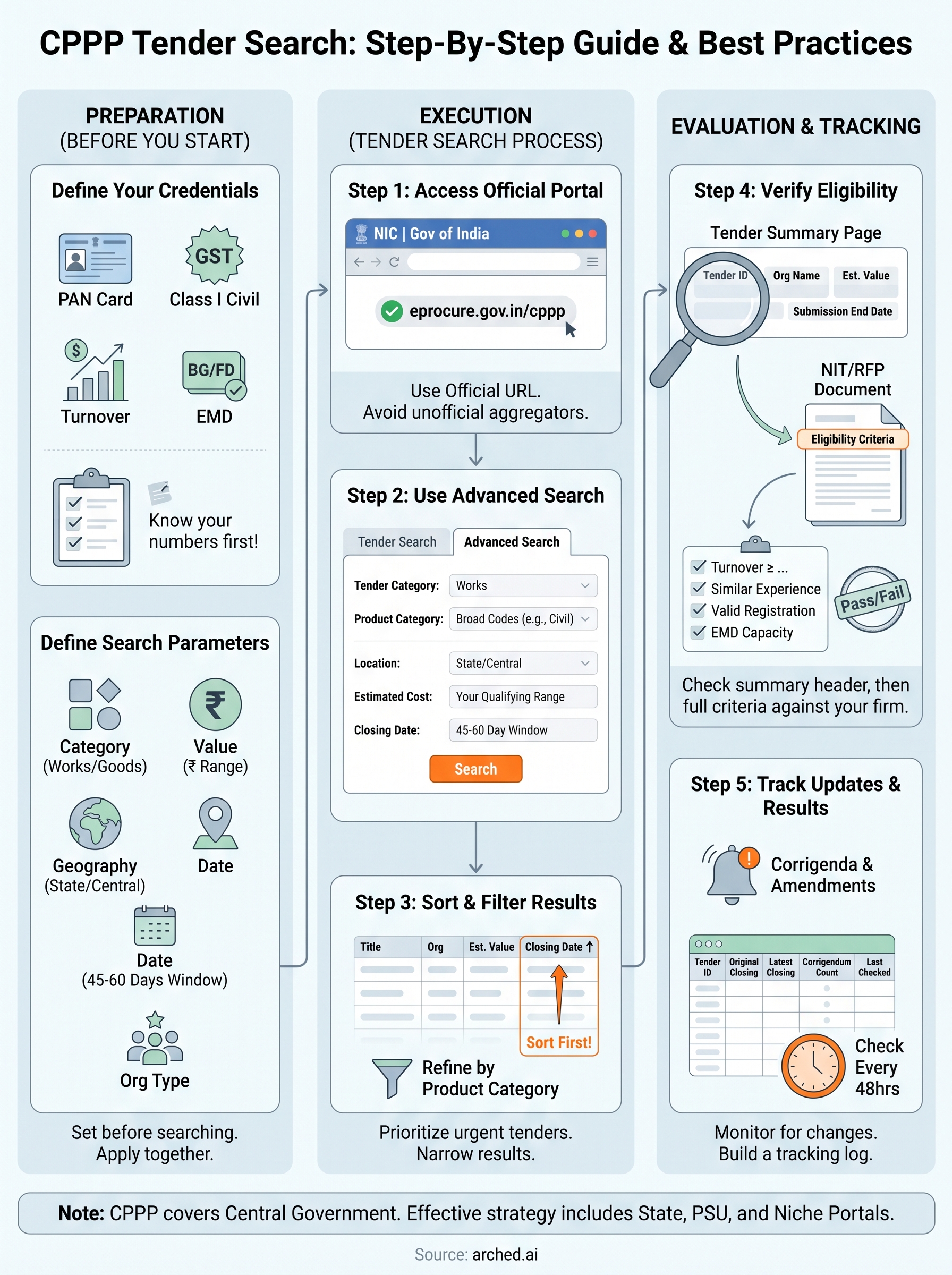
Running an effective cppp tender search comes down to preparation, structured filtering, and consistent tracking. You now have a clear process: access the official portal, apply advanced search filters based on your firm's credentials, sort by closing date, verify eligibility before downloading documents, and monitor every active tender for corrigenda and award data. Each step cuts time and reduces the chance of missing a relevant opportunity or submitting a disqualified bid.
That said, CPPP covers only central government tenders. State-level portals, PSU procurement systems, and niche platforms require the same level of attention, and checking each one manually every day is not a sustainable workflow for a serious business development operation. Arched monitors over 500 government portals simultaneously, matches opportunities to your firm's actual credentials, and flags the tenders most worth your time. If you want to see how that works for your firm, explore what Arched can do for your pipeline.