IREPS Tender Results: How To Check Status And Winner Online
Check ireps tender results online and track your bid status. Learn how to find winners and analyze pricing benchmarks to improve your next bid.
Every government contractor working with Indian Railways knows the drill: you submit a bid on the IREPS portal, and then the waiting begins. Checking IREPS tender results manually means logging in repeatedly, navigating through multiple screens, and hoping you don't miss an update buried in the system. For BD managers and bid teams handling dozens of active tenders simultaneously, this process eats into time that could be spent on actual strategy.
The Indian Railways E-Procurement System (IREPS) does publish tender outcomes, including winning bidders, contract values, and award status, but finding that information efficiently is another story. The portal's interface isn't exactly intuitive, and results are scattered across different sections depending on the type of procurement (works, goods, or services).
This guide walks you through the exact steps to check tender status and winner details on the IREPS platform, along with tips to make the process less painful. And if you're tired of refreshing portals altogether, Arched monitors IREPS and 500+ other procurement portals in real time, so you can track results, spot new opportunities, and build your pipeline from a single dashboard instead of juggling ten browser tabs.
What IREPS tender results show and where they appear
Before you start clicking through screens, it helps to know what information is actually available once a tender closes. IREPS tender results are not a single page or consolidated report. They are distributed across multiple sections of the portal, and the data you can access depends on whether you were a participating bidder or a general visitor browsing public records.
What the results data includes
A finalized IREPS tender record typically contains several layers of information. The bid opening summary shows all submitted bids ranked by price, along with bidder names and quoted values. The award notice confirms which firm received the contract, the final contract value, and the approving authority. In many cases, the record also includes the comparative statement, which lists why certain bids were disqualified or ranked lower than the winning entry.
Here is a breakdown of what each result type shows:
| Result Type | What It Shows |
|---|---|
| Bid Opening Statement | All valid bids received, bidder names, quoted amounts |
| Comparative Statement | Evaluation ranking, disqualification reasons if any |
| Award Notice | Winning bidder, final contract amount, awarding authority |
| Contract Finalization | PO or work order number, contract start date |
Not every tender reaches the award stage. Some are cancelled, re-tendered, or put on hold, and IREPS will reflect one of those status labels instead of a confirmed winner.
Where results appear on the portal
IREPS organizes procurement into three main categories: works, goods, and services. Each category has its own navigation path inside the portal, and tender results sit within the relevant category section rather than in one unified results area. If you are searching for a works contract result, you navigate through the works module specifically, not through a general results search.
Published results also depend on the tender's current stage in the workflow. A tender that has opened bids but not yet issued an award will show bid values without a confirmed winner. One that is fully finalized will carry a work order or purchase order number attached to the record. Knowing which stage you are looking for prevents you from misreading an incomplete result as a final outcome, which is a common error when BD teams are tracking multiple tenders at once.
For tenders you participated in, your login dashboard surfaces your own bid ranking and the result notification directly. For tenders you did not bid on, you can still view finalized results through the public-facing search, though the level of detail is sometimes reduced compared to what a registered bidder sees. This distinction matters when you are doing competitive research or benchmarking your firm's quoted rates against what winning contractors actually submitted. Understanding what data is available, and where it lives, is the first step before you run any result check on the platform.
Before you start: details you need
Pulling up IREPS tender results takes less time when you have the right information ready before you log in. The portal does not have a single universal search bar that finds everything. You need to know which procurement category the tender falls under and have at least one identifying piece of data, such as a tender number or NIT reference, to locate the correct record quickly.
If you participated in the tender
Your own bid activity gives you a head start. When you log in as a registered bidder, the system links results directly to your account dashboard, but you still need the tender reference number to confirm you are looking at the right record. Gather the following before you start:
- Tender number or NIT number: This appears on the original tender notice you downloaded or saved
- Tender category: Works, goods, or services (determines which module you navigate to)
- Railway zone or unit: The issuing zone, such as Northern Railway or South Central Railway
- Your registered IREPS login credentials: Username and password for your firm's account
- Approximate bid submission date: Helps you filter results if you cannot locate the exact tender number
If you submitted your bid as part of a consortium or joint venture, log in using the account designated as the lead bidder, since results attach to that specific registration.
If you are doing competitive research
Researching a tender you did not bid on requires slightly different preparation. You do not need login credentials for public result records, but you do need the tender number or the name of the issuing authority to narrow your search. Without at least one of those, you will spend significant time scrolling through lists of finalized contracts with no clear filter.
Keep a simple tracking sheet with the tender number, issuing zone, and category for every contract you plan to look up. This one habit cuts your research time considerably, especially when you are checking multiple IREPS tender results in a single session.
Step 1. Find the tender in IREPS
Open your browser and go to the IREPS portal at ireps.gov.in. You can access finalized tender records whether or not you are logged in, but logging into your registered account gives you additional details on tenders you participated in. Once the homepage loads, look for the procurement section navigation along the top menu, which splits into Works, Goods, and Services.
Navigate to the correct procurement module
The module you choose determines what results populate on your screen. Select the category that matches the tender you are researching. For a road or bridge construction contract, that means Works. For equipment purchases, go to Goods. Each module maintains its own database of published results, so searching in the wrong section returns nothing useful even if the tender exists in the system.

After selecting the module, look for a "Tender Search" or "Result" subsection within that module's menu. The portal labels these slightly differently depending on recent updates, but the path follows the same logic: module, then tender search, then results filter. Clicking directly into "Finalized Tenders" or a similar label narrows your view to completed contracts only, which saves you from sorting through open or cancelled records.
Search by tender number or issuing authority
With the correct module open, enter your tender number or NIT reference in the search field. This is the fastest route to the specific record you need. If you do not have the tender number, use the issuing railway zone as your filter, such as "Northern Railway" or "South Central Railway," combined with an approximate date range around when the tender closed.
If your search returns no results, check that you selected the right module first, since a works tender will not appear inside the Goods module regardless of how accurate your tender number is.
Here is a quick reference for common IREPS tender results search inputs:
| Search Input | When To Use |
|---|---|
| Tender number / NIT number | You have the exact reference from the original notice |
| Issuing railway zone | You know the zone but not the exact number |
| Department or unit name | Narrowing results within a large zone |
| Date range | Filtering recently finalized contracts |
Step 2. Check result status and winner details
Once your tender record loads, the first thing you see is a status label near the top of the entry. This label tells you immediately whether the tender reached a final decision or is still in progress. Do not skip past it to look for a winner name before you confirm the status is finalized, since an incomplete status means the winner data may not yet be published.
Read the status label first
IREPS uses specific status terms across its tender records, and each one means something different. Knowing what each label indicates saves you from misreading a pending record as a completed result.
| Status Label | What It Means |
|---|---|
| Finalized / Award Issued | Contract awarded, winner details available |
| Under Evaluation | Bids received, results not yet published |
| Cancelled | Tender withdrawn, no award made |
| Re-tendered | Original cancelled and reissued as new tender |
| LOA Issued | Letter of Acceptance sent to the winning bidder |
If the status shows "Under Evaluation," check back in a few days rather than assuming the data is missing or that you are searching in the wrong place.
Locate the winner details
When the status confirms the tender is finalized, click into the record to open the full result page. Scroll to the section labeled "Award Details" or "Comparative Statement," depending on how IREPS has structured that particular record. You will find the winning bidder's name, their quoted amount, and the final contract value approved by the awarding authority in this section.
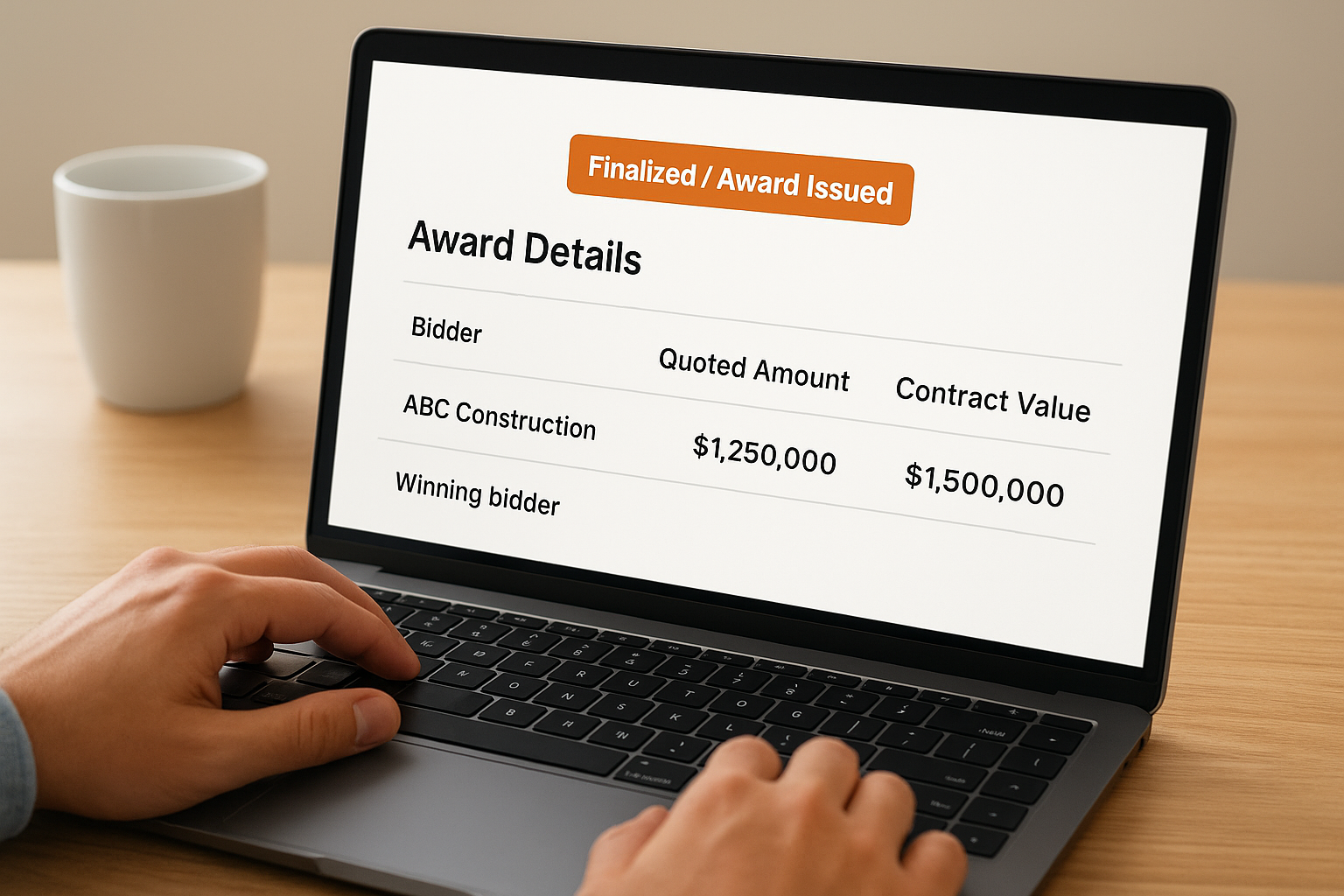
For IREPS tender results where you were a participating bidder, your own rank appears alongside the winner's entry, so you can see exactly where your bid placed and by how much the winning quote differed. This comparison is valuable data for calibrating your rates on future bids in the same procurement category. If you are doing competitive research, focus on the winning rate per unit or per item in the BOQ breakdown, since that figure tells you more than the total contract value alone.
Step 3. Verify the award and next actions
Finding a winner name and contract value in the record is not the same as verifying the award is complete. Before you take any action based on what you see, confirm that the document trail matches the status label. An award notice that shows a winner's name but carries no Letter of Acceptance (LOA) number or work order reference may still be in an intermediate processing stage, and treating it as finalized when it is not causes errors in your pipeline tracking.
Confirm the award document details
Open the award section and cross-check three specific fields: the LOA or work order number, the date of issue, and the name of the approving authority. These three fields together confirm the award is fully processed rather than provisionally recorded. If any of these fields appear blank or show as pending, the contract is not yet fully executed.
A work order number on IREPS typically follows a structured format: zone abbreviation, department code, financial year, and a sequential number, for example NR/CE/2025-26/0042. If the number looks truncated or incomplete, the record may still be in draft status inside the system.
Take action based on your role in the tender
If you were the winning bidder, download the LOA immediately from the award record and confirm the contract start date, performance guarantee requirement, and mobilization timeline. Store the document in your bid tracking system the same day you access it, not later in the week.
Tracking your losses matters just as much as documenting your wins. If your bid was unsuccessful, record the winning rate, the winning firm's name, and the final contract value in your competitive database. Comparing your quoted rates against winning IREPS tender results across similar projects over several months gives you a clear pricing benchmark for future submissions.
Use this post-result action checklist to keep your response consistent across every tender outcome:
| Scenario | Immediate Action |
|---|---|
| You won | Download LOA, check performance guarantee deadline |
| You lost | Log winner's rate, update competitive benchmarks |
| Tender was cancelled | Flag the category for re-tender monitoring |
| Result still pending | Set a follow-up reminder for 3 to 5 business days |
You can check results confidently now
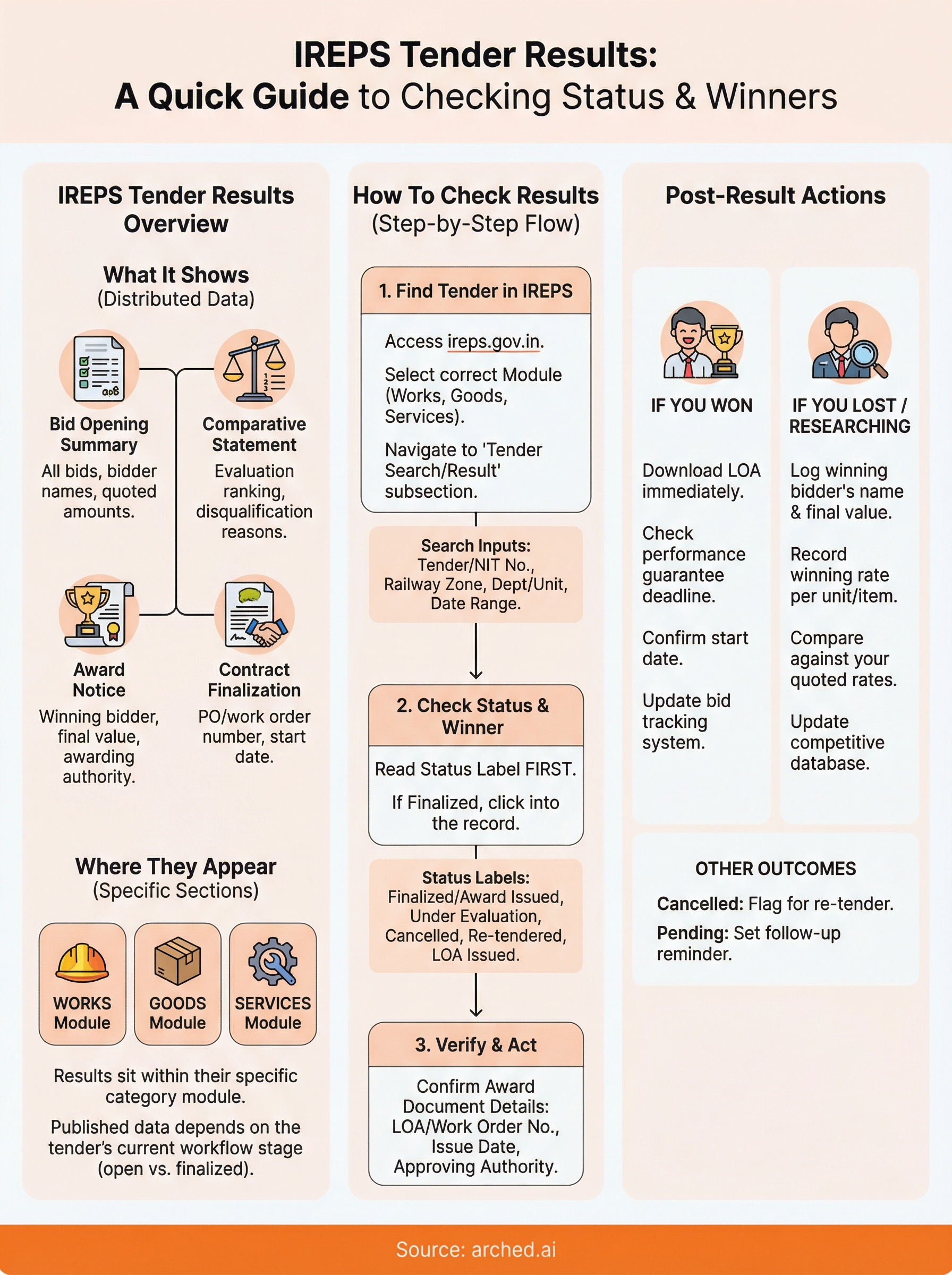
You now have a clear process for tracking IREPS tender results from login to verified award. The steps are straightforward once you know which module to enter, what status labels mean, and which fields confirm a fully executed contract rather than a provisional record. Applying this consistently across every tender you track keeps your pipeline accurate and your competitive benchmarks current.
Doing this manually across dozens of active tenders still takes significant time, especially when you are monitoring works contracts spread across multiple railway zones. That is where a purpose-built tool removes the friction entirely. Arched monitors IREPS alongside 500+ other procurement portals in real time, surfaces relevant result updates automatically, and lets you track bid outcomes, competitor awards, and new opportunities from a single dashboard so your team can focus on winning contracts rather than refreshing portal pages.