CPPP Portal Tender Search: How To Find Active Tenders
The Central Public Procurement Portal is where most central government ministries, departments, and PSUs publish their procurement notices. Running a CPPP portal tender search is one of the first things any contractor or BD manager does when hunting for new opportunities. But if you've spent time on the portal, you know the experience isn't exactly intuitive, filters behave inconsistently, search results bury relevant tenders, and you're left refreshing pages across multiple tabs.
This guide walks you through how to actually find active tenders on CPPP, step by step, covering search filters, organization-wise browsing, and how to read tender details before downloading bulky documents. We'll also show you where the portal falls short and what to do once you have found a tender worth bidding on.
Whether you're new to public procurement or just tired of the manual grind, this is a practical starting point.
What the CPPP is and which site is official
The Central Public Procurement Portal (CPPP) is India's government-mandated platform for publishing procurement notices from central government ministries, departments, and public sector undertakings. Launched by the National Informatics Centre (NIC) under the Ministry of Finance, it serves as the single source of truth for central government tenders above the threshold values set by the General Financial Rules. Any contractor running a cppp portal tender search should know this is not a private aggregator. It is the official, government-operated system.
The official CPPP website
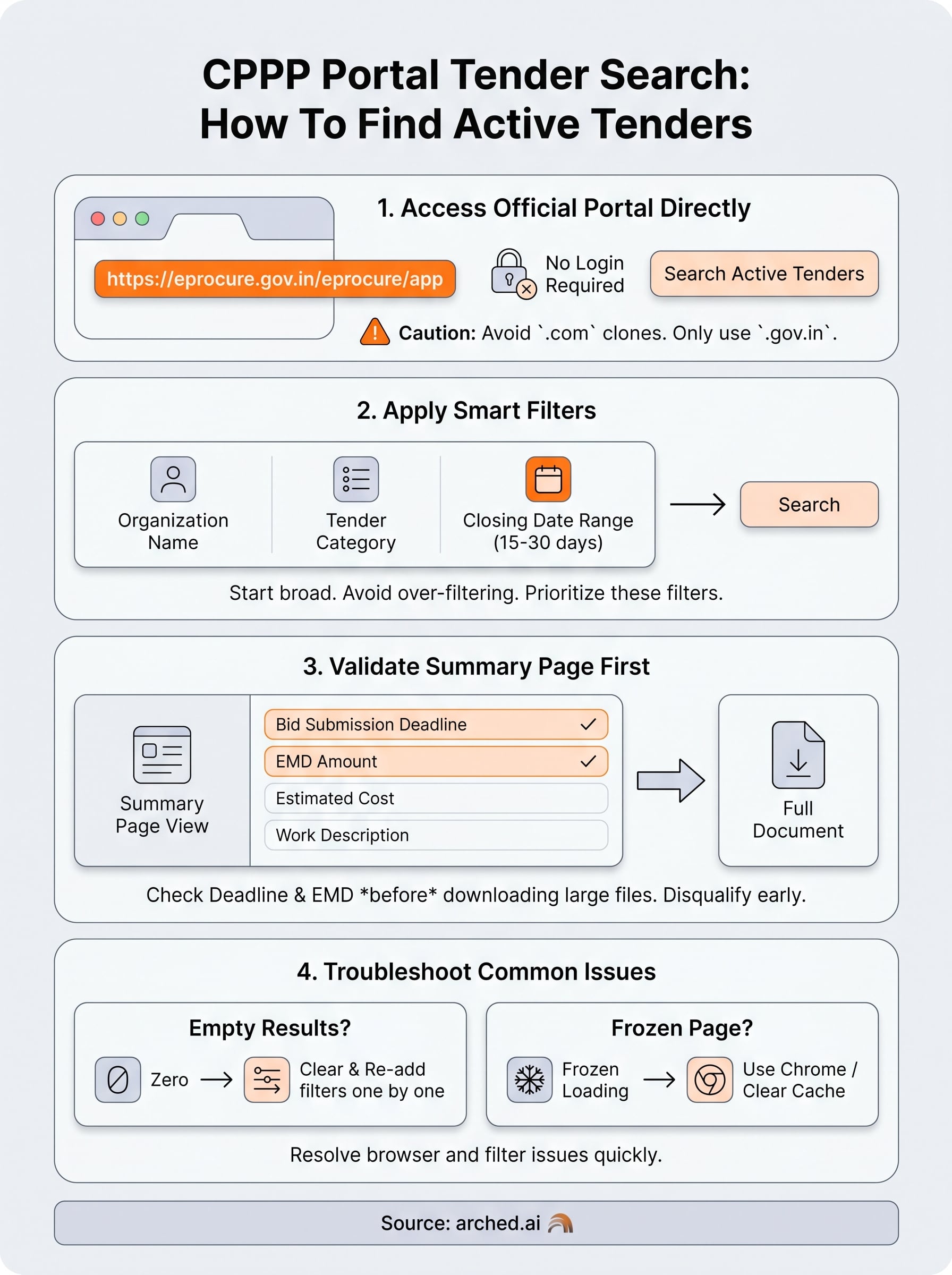
The only legitimate CPPP URL is eprocure.gov.in, and the tender search interface sits at https://eprocure.gov.in/eprocure/app. Several clone-looking or similarly named sites exist online that either aggregate content or display outdated data. Always verify you are on the .gov.in domain before relying on any tender information for a live bid decision.
If the URL does not end in
.gov.in, you are not on the official CPPP portal.
Browsing published tenders requires no login or registration. You can search notices, view tender documents, and check corrigenda as a guest. Registration becomes mandatory only when you want to submit a bid through the portal's e-tendering module.
What gets published on CPPP
CPPP covers procurement from a wide range of central government bodies, including ministries, attached offices, autonomous bodies, and central PSUs. The types of notices you will find include:
- Works tenders: civil construction, road projects, building contracts
- Goods tenders: equipment, materials, and machinery procurement
- Services tenders: consultancy, facility management, and IT services
- Expression of Interest (EoI) notices: pre-qualification and empanelment calls
State government tenders are generally absent from CPPP. Those appear on individual state e-procurement portals, which is why firms operating across multiple regions typically monitor both CPPP and state-level systems in parallel.
Step 1. Open the right CPPP tender search page
Before you run any cppp portal tender search, you need to land on the correct page. The CPPP homepage at eprocure.gov.in is not the search interface. It is an entry point, and navigating from there adds unnecessary clicks that slow you down.
Navigate directly to the search interface
The fastest way to reach the tender search page is to go directly to https://eprocure.gov.in/eprocure/app in your browser. This loads the main e-procurement application where the public tender listing is accessible without any login.
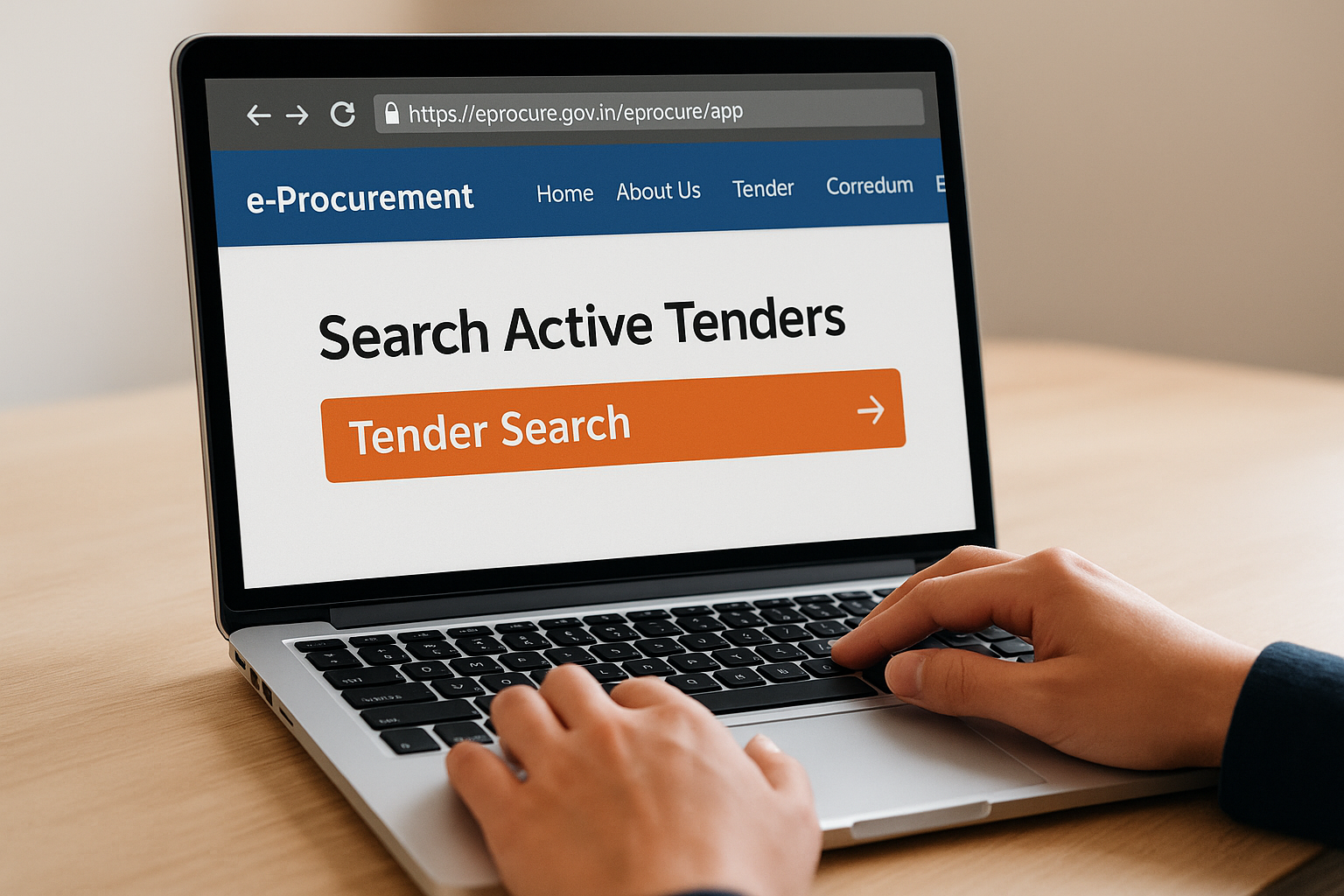
Bookmark this URL directly. The homepage redirects often change, but this path to the tender search interface stays consistent.
From that page, follow these steps:
- Look for the "Tender Search" link in the top navigation bar.
- Click it to open the public tender listing.
- Verify the page title reads "Search Active Tenders" before applying any filters.
If the page does not load correctly, clear your browser cache or switch to a different browser. CPPP works best on Chrome or Firefox. Internet Explorer is no longer supported, and some filter dropdowns fail silently on older or unsupported browsers, giving you no error message to diagnose.
Step 2. Find active tenders with the best filters
The CPPP tender search page gives you several filter fields, but not all of them are equally reliable. Using the wrong combination returns zero results with no explanation, which wastes time. Focus your cppp portal tender search on three or four high-signal filters rather than filling every available field.
Start broad, then narrow down. Filling every filter at once often triggers the portal's strict matching logic and returns an empty results page.
The filters that actually produce results
The most consistent filters on the CPPP search page are Organization Name, Tender Category, and Closing Date Range. Use the table below to understand when to apply each one:
| Filter | What It Does | Best Used When |
|---|---|---|
| Organization Name | Limits results to a specific ministry or PSU | You track specific client agencies |
| Tender Category | Filters by Works, Goods, or Services | You specialize in one sector |
| Closing Date Range | Shows tenders closing within a set window | You need to prioritize urgency |
| Location | Narrows by state or district | You have regional coverage limits |
Set your Closing Date Range to a window of 15 to 30 days. This keeps your list actionable while still capturing tenders published recently that may carry longer submission windows.
Step 3. Open a tender and validate the key details
Once your cppp portal tender search returns a list of results, clicking a tender title opens a summary page before you download any documents. This summary page contains the most critical fields you need to check before investing time in a full document review.
Never download full tender documents before confirming the basic eligibility fields on the summary page first.
What to check on the tender summary page
The summary page shows key procurement details without requiring a login. Before opening any attached PDFs, verify these fields:
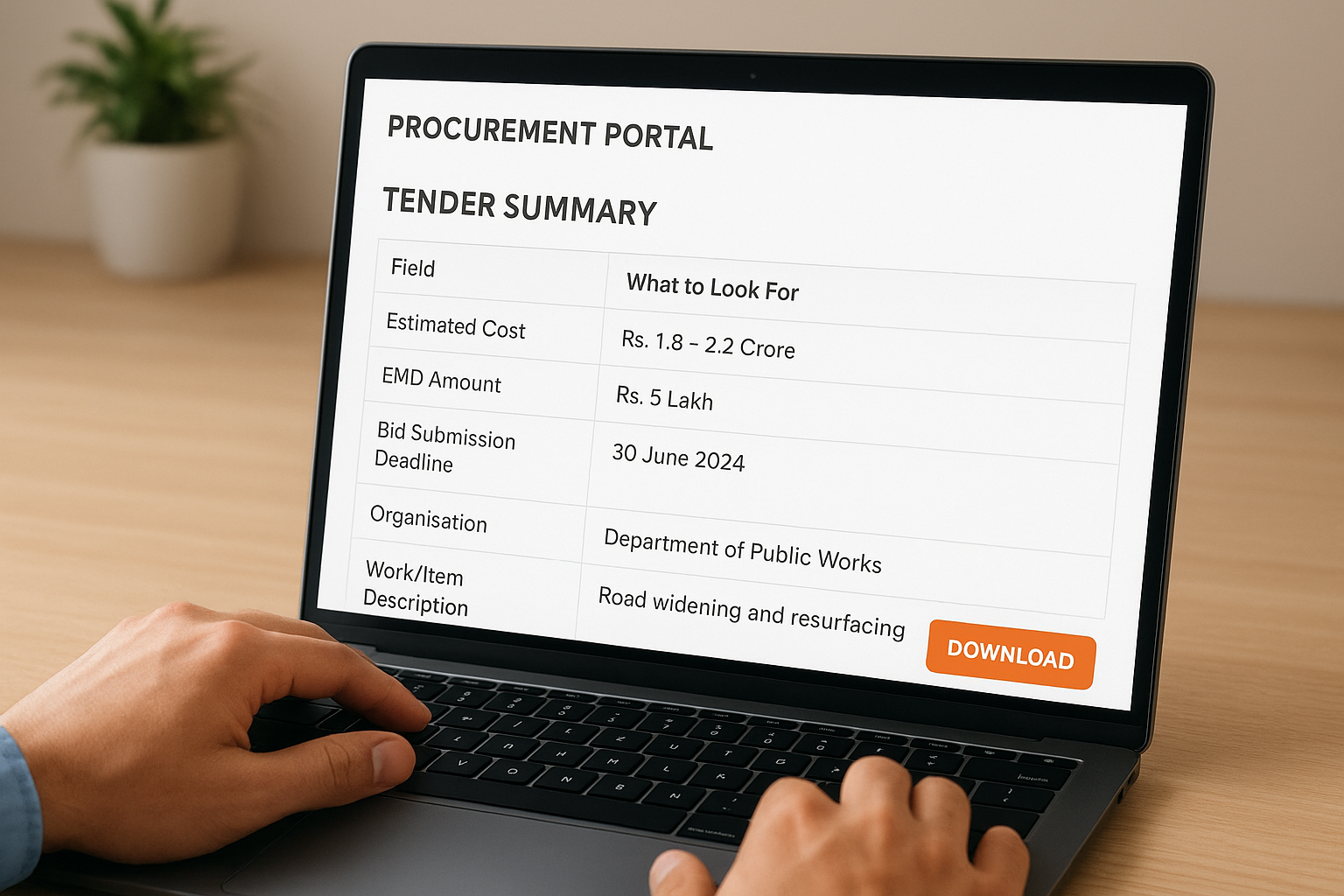
| Field | What to Look For |
|---|---|
| Estimated Cost | Confirms the contract value range |
| EMD Amount | States the earnest money deposit required |
| Bid Submission Deadline | Confirms how much time you have |
| Organisation | Confirms the client agency |
| Work/Item Description | Gives a plain-language summary of scope |
Prioritize the fields that disqualify first
Check the Bid Submission Deadline and EMD Amount first. If either disqualifies your firm immediately, you save the time spent reading a multi-hundred-page BOQ document. Then confirm the organisation name matches a client type your firm has worked with before, since past experience with a specific ministry or PSU often signals an existing eligibility baseline worth pursuing.
Fix common CPPP search issues
Running a cppp portal tender search will occasionally hit predictable problems. Most of them come down to browser compatibility or over-filtered search inputs, not actual system outages. The fixes below address the issues bid managers encounter most frequently.
Empty results after applying filters
Your search returns nothing when the portal's matching logic finds no exact combination across all selected fields. Clear all filters and rerun the search with only one criterion, such as Organization Name or Tender Category, then add filters one at a time until results thin out. This tells you precisely which field caused the drop.
If results disappear after adding the Location filter, the portal may have inconsistent location tagging on older notices. Remove Location and filter by organization instead.
Page errors and frozen dropdowns
Filter dropdowns sometimes freeze or fail to populate without any error message. Switch to Google Chrome if you are using any other browser, since CPPP's front end is most stable there. If dropdowns still fail, clear your browser cache using Ctrl+Shift+Delete, close the tab, and reopen the search URL directly. Avoid using browser extensions that block scripts, as they interfere with the portal's dropdown dependencies.
Next steps
You now have a working process for a cppp portal tender search, from landing on the right URL to validating the key fields before reading a full document. The practical limitation is time. Manually checking CPPP every day, adjusting filters, and reading summary pages still takes hours each week, and CPPP alone does not cover state-level procurement portals where a significant share of AEC contracts are published.
If your firm bids across multiple agencies or states, the estimate quickly becomes the next bottleneck once you have found the right tenders. Arched can prepare the priced BOQ for you, reviewed by an engineer. See how our estimating service works.
Have a package your team can’t get to? Send it to us. Our engineers check and sign off everything we deliver.