GeM Tender Results: How To Check Bid Status In Minutes
You submitted a bid on GeM three days ago. Now you're refreshing the portal every few hours, clicking through tabs, trying to figure out if the technical evaluation is done or if the financial bid has even been opened. Checking gem tender results shouldn't feel like a scavenger hunt, but for most contractors and BD teams, it does. The portal holds all the information, it's just buried under layers of navigation that nobody explains clearly.
This guide walks you through the exact steps to check your bid status on GeM, from finding published results to understanding technical and financial evaluation outcomes. No guesswork, no wasted clicks. Whether you're tracking a single bid or managing dozens across categories, you'll know exactly where to look and what each status means.
At Arched, we prepare estimates and BOQs for contractors bidding on government tenders. Whether a bid is won or lost, knowing how to navigate GeM's result pages is a fundamental skill every government contractor in India needs. Let's get into it.
What GeM tender results show and when they update
GeM tender results are not a single page with one status. They span multiple stages across a bid's lifecycle, and each stage publishes different information at different times. Understanding what gets shown, and when, saves you from checking at the wrong moment or misreading a status that simply hasn't been finalized yet.
What the result page actually contains
When a tender closes and evaluation begins, GeM publishes bid data in two distinct layers: the technical evaluation outcome and the financial bid ranking. The technical layer tells you whether your submission passed basic qualification criteria, covering things like turnover thresholds, prior experience requirements, and document completeness. The financial layer shows where your quoted price sits relative to all other responsive bidders, listed from lowest to highest.
A bid marked "technically qualified" does not mean you've won. The financial ranking determines the award, and that data opens separately, sometimes days later.
Beyond the ranking, the result page also displays the L1 price (the lowest quoted price among qualified bidders), the total number of participants, and in most cases, the name or registration details of the winning vendor. This information is valuable even when you lose, because it tells you exactly how far off your pricing was and who your direct competition is in that category. Over time, tracking this across multiple gem tender results builds a clear picture of market pricing and competitor behavior.
When GeM updates results
GeM does not post results on a fixed schedule. The timeline depends on the buying organization's internal evaluation speed and whether the tender used a two-bid system or a single-bid system. In a single-bid process, results can appear within 24 to 48 hours of the bid deadline. In a two-bid process, the technical result posts first, sometimes several working days before the financial bid even opens.
Here is a general timeline you can expect for a two-bid tender on GeM:
| Stage | Typical Timeframe After Bid Deadline |
|---|---|
| Technical evaluation result | 2 to 7 working days |
| Financial bid opening | 1 to 3 days after technical result |
| Final award or order placement | 3 to 10 working days after financial opening |
These are estimates based on standard GeM workflows. Departments can take longer during quarter-end periods or if they issue clarification requests to bidders. Always check the tender's bid validity period, which sets the outer deadline by which a buying organization must declare a result or extend the process.
Step 1. Find GeM tender results without login
GeM publishes awarded bid data publicly, which means you do not need a registered account to check results for tenders you are researching. This is useful for market intelligence, pricing benchmarks, or verifying competitor award history before you bid on a similar requirement.
How to access the public tender search on GeM
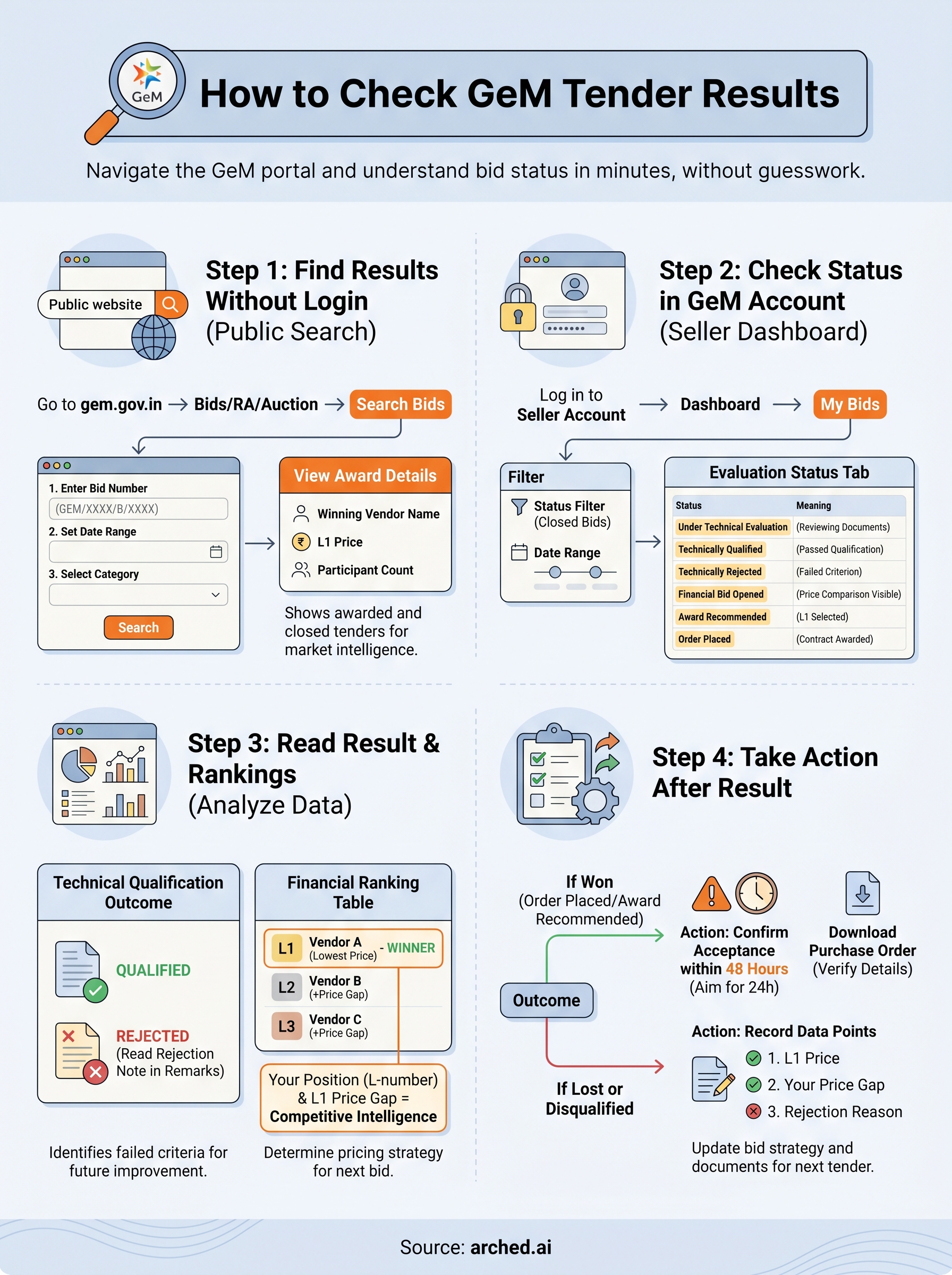
Go directly to the GeM portal at gem.gov.in and navigate to the "Bids/RA/Auction" section from the top menu. From there, select "Search Bids" to open the public bid search interface. You do not need to sign in at any point during this process.
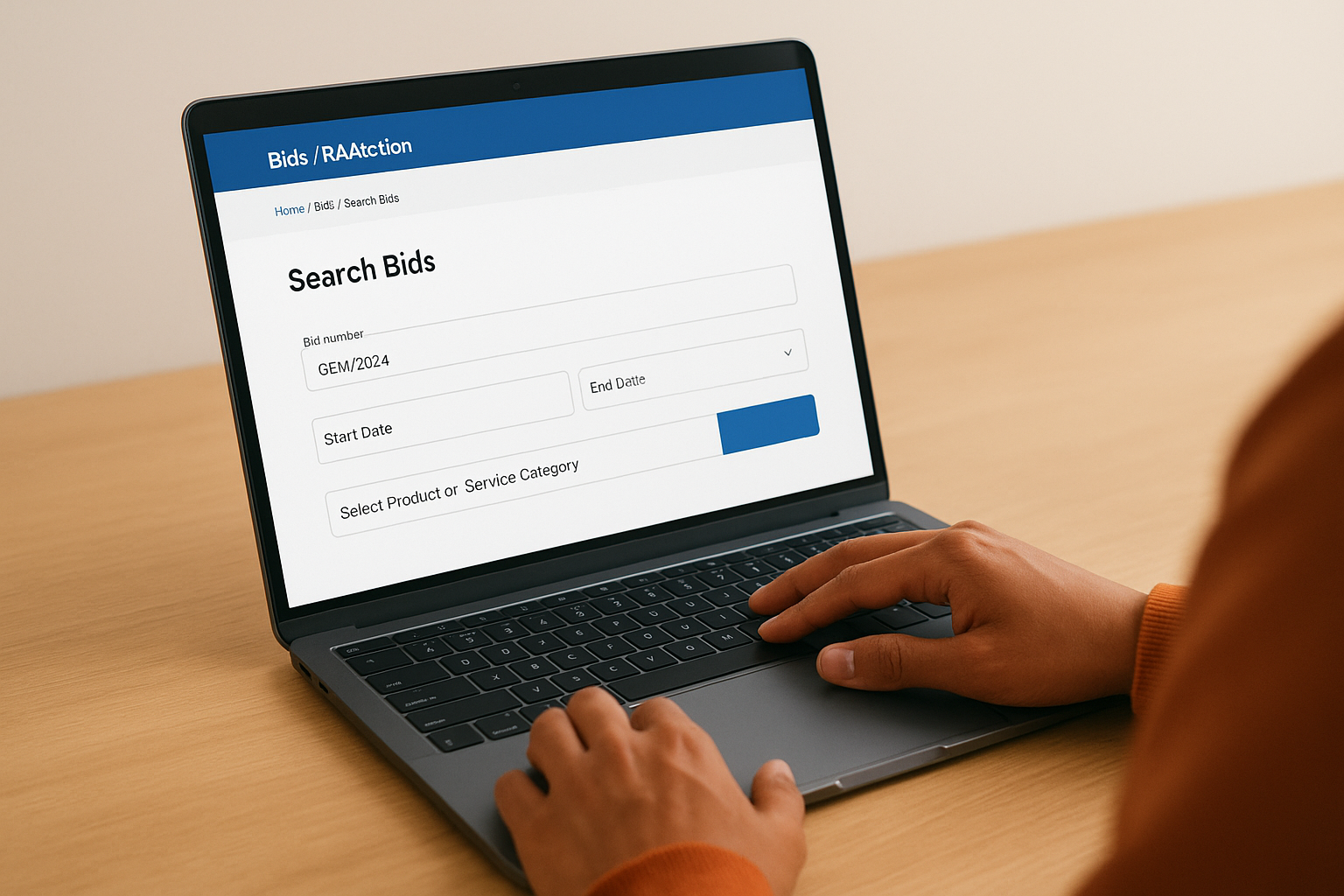
GeM's public search shows awarded and closed tenders, not just live ones, which makes it a reliable source for checking gem tender results on past procurement activity.
Once you're on the search page, use the following steps to pull up a specific result:
- Enter the bid number in the search field (format: GEM/2024/B/XXXXXXX)
- Set the date range to cover the period when the bid was active
- Select the relevant product or service category from the dropdown to narrow results
- Click "Search" and open the matching bid from the results list
- Scroll to the "Award Details" or "Result" tab on the bid detail page
If the bid has been awarded, the page shows the winning vendor's name, the L1 price, and the total number of participants. If the award tab is blank, evaluation is still in progress or the buying organization has not yet finalized the result.
Step 2. Check your bid status inside your GeM account
When you are logged in as a registered seller, GeM gives you a dedicated bid tracking dashboard that shows updates specific to your own submissions. This view goes beyond the public search and displays whether your bid passed technical evaluation, was disqualified, or holds a financial ranking against other responsive bidders.
Navigate to your active and past bids
Log in to your GeM seller account at gem.gov.in, then select "My Bids" from your seller dashboard. This section lists every tender you have participated in, both active and closed. Use the filter options to sort by status or date range to locate the specific tender you are tracking.
If the status reads "Under Technical Evaluation," the buying organization has not yet published a result. Check back after the technical evaluation window listed on the tender notice closes.
Follow these steps to pull up a specific bid:
- Click "My Bids" in the left navigation panel
- Select "Closed Bids" from the status filter
- Enter the bid number or apply a date filter to narrow the list
- Click the bid row to open the detailed status page
- Review the "Evaluation Status" tab for both technical and financial outcomes
What each status label means
GeM uses standardized status labels across all bid types. Here is a quick reference so you can read any gem tender results page without confusion:
| Status Label | What It Means |
|---|---|
| Under Technical Evaluation | Buying org is reviewing your documents |
| Technically Qualified | Your bid passed the qualification stage |
| Technically Rejected | Your bid failed a qualification criterion |
| Financial Bid Opened | Price comparison is now visible |
| Award Recommended | Buyer has selected the L1 vendor |
| Order Placed | Contract awarded, order generated |
Two tenders from the same department can show entirely different statuses at the same time, since each page updates based on that buying organization's individual actions.
Step 3. Read the bid result page and rankings
Once you open the detailed result page, you are looking at two separate data sets: the technical qualification outcome and the financial ranking table. Most first-time users focus only on whether they won or lost, but the real value in any gem tender results page is what the numbers tell you about your competitive position going forward.
Understanding the financial ranking table
The financial ranking table lists every technically qualified bidder in ascending order by quoted price. Your position in this list is your L-number: L1 is the lowest price, L2 is second lowest, and so on. If you land at L3 on a tender awarded to L1, the gap between your quote and the winning price is the exact number you need to close on the next similar bid.

An L2 or L3 result is not a failure. It is precise market intelligence showing where your pricing sits against active competition in that procurement category.
Pay attention to the total participant count alongside your ranking. A field of three bidders where you placed L2 is a very different picture than a field of twenty where you placed L2. Both look identical in status but require different responses in your pricing approach.
Spotting disqualification reasons
When your bid shows "Technically Rejected," the result page usually includes a rejection note in the evaluation remarks column. This note identifies which criterion your submission failed, such as missing turnover documents or an expired certificate. Read this before you re-bid on a similar requirement, because submitting the same incomplete package wastes bid validity and signals poor preparation to the buying department over time.
Step 4. Take action after the result shows
The result page is not the end of the process. Whether you won, lost, or got disqualified, each outcome requires a specific follow-up action within a defined window. Delaying that response costs you either the contract or the chance to improve your next bid.
If you won the tender
Once the status shows "Order Placed" or "Award Recommended," log in to your GeM seller account immediately and confirm acceptance of the order through the seller dashboard. GeM sets a 48-hour acceptance window for most order types, and missing it can result in automatic cancellation and a performance penalty on your seller profile.
Confirm order acceptance within 24 hours, not 48, to give yourself buffer time in case of any portal errors or document upload issues.
After accepting, download the purchase order document from the order detail page and cross-check the delivery timeline, quantity, and billing details against your original bid submission.
If you lost or were disqualified
Pull the gem tender results page and record three specific data points: the L1 price, your quoted price, and the rejection reason if applicable. These numbers feed directly into your bid strategy for the next similar tender.
Use this action checklist before re-bidding on any related requirement:
- Note the pricing gap between your quote and L1
- Identify which qualification documents were flagged or missing
- Update your document folder with current certificates before the next submission
- Adjust your cost sheet to reflect actual market pricing in that category
Next Steps
You now have a clear process for reading gem tender results, tracking your bid status, and turning every outcome into useful market intelligence for your next submission. The steps above work whether you're checking a single bid or managing a pipeline of dozens across departments and procurement categories.
The real challenge most BD teams face is not knowing where to look inside GeM. It is having a sound, priced bid ready for each opportunity. Missing one means a lost opportunity that your competitors may already be pricing.
That is where outside estimating capacity helps. If your team has more tenders than estimators, Arched can take the estimate off your plate: send the drawings and we deliver a priced BOQ with rate build-ups, reviewed by an engineer. See how our estimating service works.
Have a package your team can’t get to? Send it to us. Our engineers check and sign off everything we deliver.