CPWD Contractor Enlistment Portal: Login, Fees, Process
Navigate the cpwd contractor enlistment portal with ease. Learn the registration process, fee structures, and document needs to secure your CPWD license.
TL;DR — CPWD contractor enlistment runs on CEMS (Contractor Enlistment Management System) at enlistment.cpwd.gov.in — registration, document upload, fee payment, renewals, and status tracking all happen there. Contractors are enlisted in seven classes, Class I (no upper limit) down to Class VII (₹50,000), and the class caps the tender value the firm can bid for. Assemble the document set before starting: incomplete uploads are the usual cause of multi-week delays.
Getting enlisted with CPWD is one of the most important steps for any contractor looking to win central government construction projects in India. The CPWD Contractor Enlistment Portal, officially called the Contractor Enlistment Management System (CEMS), is where you register, submit documents, and track your enlistment status online. But between the login issues, document checklists, and fee structures across different classes, the process trips up even experienced contractors.
At Arched, we help infrastructure firms and government contractors cut through the noise of public procurement, our AI platform monitors 500+ portals, including CPWD, to surface the right opportunities based on your actual credentials. Understanding enlistment is the first step; knowing which tenders match your class and capabilities is what turns that registration into revenue.
This guide walks you through the CEMS portal step by step, from registration and login to eligibility criteria, required documents, and the exact fees you'll need to pay for each enlistment class.
What the CPWD contractor enlistment portal is
The Contractor Enlistment Management System (CEMS) is the official online portal run by the Central Public Works Department to manage contractor registrations across India. You access it at enlistment.cpwd.gov.in. Before CEMS, contractors submitted paper applications to regional CPWD offices, which created delays and limited visibility into application status. CEMS digitized the entire workflow, from initial registration to document upload, fee payment, and real-time status tracking, so you can complete and monitor your application without visiting a CPWD office.
How enlistment classes are structured
CPWD enlists contractors under seven classes (Class I through Class VII), each mapped to a range of project sizes you are eligible to bid on. Your class sets the maximum tender value you can pursue, so applying for the right class from the start directly shapes your business pipeline. The table below shows the general class breakdown for civil works:
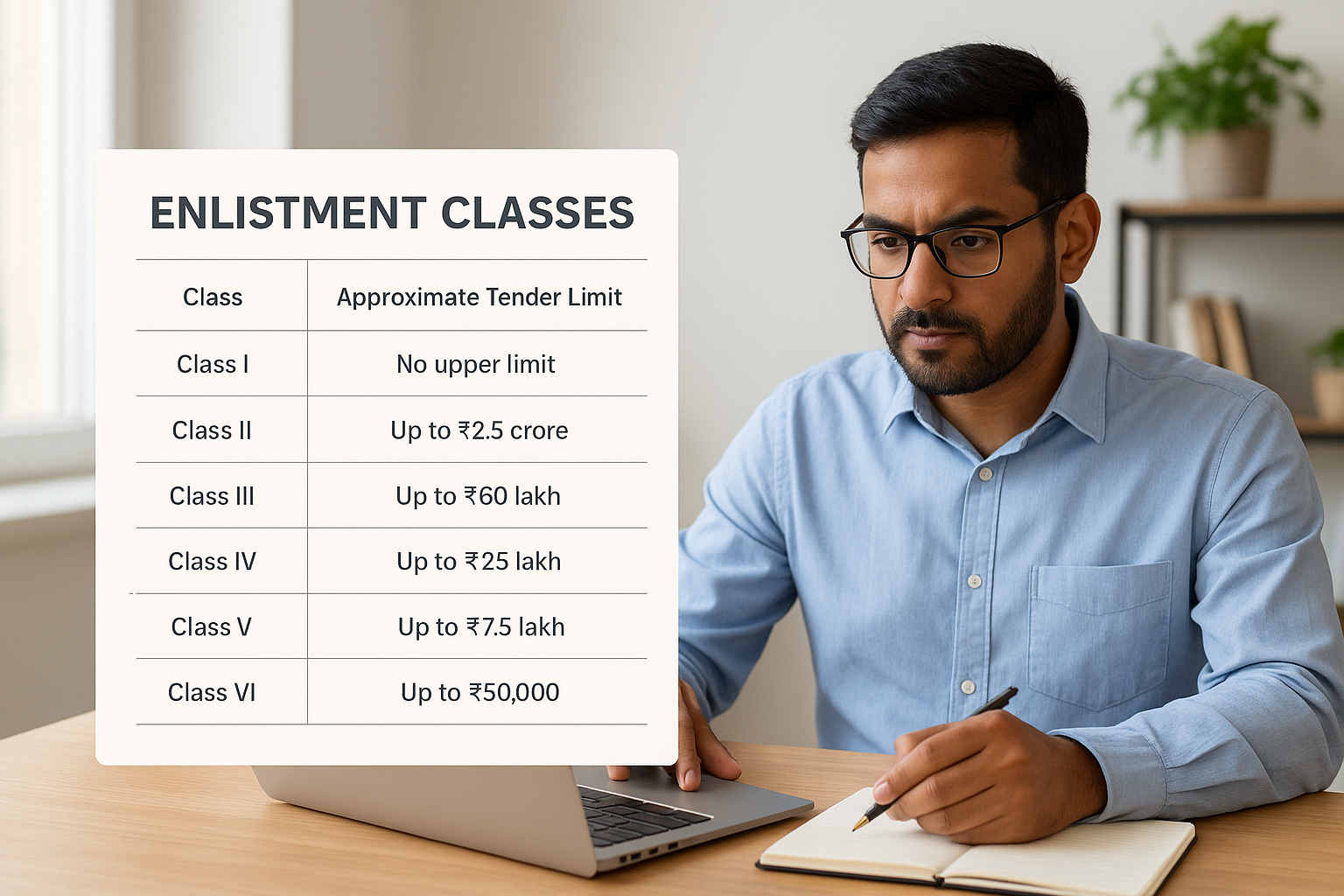
| Class | Approximate Tender Limit |
|---|---|
| Class I | No upper limit |
| Class II | Up to ₹2.5 crore |
| Class III | Up to ₹60 lakh |
| Class IV | Up to ₹25 lakh |
| Class V | Up to ₹7.5 lakh |
| Class VI | Up to ₹2 lakh |
| Class VII | Up to ₹50,000 |
Your enlistment class is the single biggest factor controlling which CPWD tenders you can legally bid on, so apply for the highest class your financials and track record can genuinely support.
What CEMS manages beyond registration
The cpwd contractor enlistment portal handles more than your initial sign-up. Once you are enlisted, CEMS is where you renew annually, update firm details, upload revised documents, and check whether your application is under review, approved, or flagged for corrections. All formal communication from CPWD about your enlistment flows through the portal, which means maintaining an active login is not optional if you want to stay compliant and avoid gaps that could bar you from active tenders.
What you need before you apply
Before you log in to the cpwd contractor enlistment portal, gather every document you need so the application does not stall midway. CEMS lets you save drafts, but missing documents at the upload stage can delay your approval by weeks or trigger a rejection that restarts the clock entirely. Running through a checklist before you begin is the most reliable way to reach submission without interruption.
Financial documents
Your financials prove your firm can handle the class of work you are applying for. You will need audited balance sheets for the last three financial years, along with income tax returns for the same period. For higher classes (Class I and II), you also need a solvency certificate from a scheduled bank issued within the last six months. Make sure every document carries your CA's stamp and membership number.
Confirm the solvency certificate is dated within six months of your application date; CPWD rejects certificates older than this without exception.
Firm registration and experience documents
Legal credentials and project track record carry equal weight in the review. Prepare your GST registration certificate, PAN card, and valid EPF/ESI registration before you open the portal. For experience, gather completion certificates from previous projects, each clearly showing the name of the work, the contract value, and the issuing authority's official stamp. CPWD cross-checks these values against class limits, so confirm the figures visibly support the class you are targeting.
Step 1. Register and log in to CEMS
Opening the cpwd contractor enlistment portal at enlistment.cpwd.gov.in is your starting point. The site requires a one-time registration before you can access any application forms, so set aside ten to fifteen minutes to complete sign-up without interruption.
Create your account
On the CEMS homepage, click "New Contractor Registration" to begin. The system asks for your firm's PAN number, a working mobile number, and a valid email address. CPWD sends your OTP and login credentials to both contacts, so confirm they are active before you proceed. Fill in every field exactly as it appears on your PAN card to avoid a name mismatch error later in the review process.

Use a business email address rather than a personal one; all future CPWD renewal notices and status alerts will route to this address.
Once you submit, the portal generates a temporary User ID and sends a one-time password to your registered mobile. Save both immediately in a secure location before closing the confirmation screen.
Log in and verify your session
Enter your User ID and temporary password on the CEMS login screen. The system prompts you to set a permanent password on first login, and CEMS enforces these format rules:
- Minimum 8 characters
- At least one uppercase letter
- At least one number
- At least one special character (e.g., @, #, $)
After resetting, your dashboard loads and your blank application form is ready to complete in Step 2.
Step 2. Complete the enlistment application in CEMS
Once you are logged in to the cpwd contractor enlistment portal, your dashboard shows the main application form broken into multiple tabs. Work through each tab in sequence without skipping ahead, as CEMS locks later sections until earlier ones are saved. Filling each field accurately the first time saves you from a correction request that can add two to four weeks to your review timeline.
Fill in firm and work details
The first tabs collect your firm profile and work category. Enter your firm's legal name exactly as registered, your constitution type (proprietorship, partnership, or company), and the specific work categories you are applying under, such as Civil, Electrical, or Horticulture. CEMS assigns different enlistment classes per category, so select only the categories your documented project history genuinely supports.
Double-check that the work category matches the completion certificates you prepared, since any mismatch is one of the most common reasons CPWD returns an application for revision.
Upload documents in the correct format
CEMS enforces strict file rules that reject uploads automatically if you miss them. Follow this checklist before attaching any file:
- File format: PDF only for certificates and financials
- File size: Maximum 2 MB per document
- Scan quality: Minimum 200 DPI, all text clearly legible
- Naming: Use descriptive names like
Balance_Sheet_FY2024.pdfto match the field label
Upload each document to its designated field rather than combining files into a single PDF, or the system flags the submission as incomplete.
Step 3. Pay fees, submit, and track status
After completing and saving all tabs in your application, the cpwd contractor enlistment portal routes you to the payment screen. This final stage takes three actions in order: fee payment, formal submission, and status tracking. Do not close your browser after payment before downloading the payment confirmation receipt, as this is the only proof of transaction the portal generates.
Pay the enlistment fee
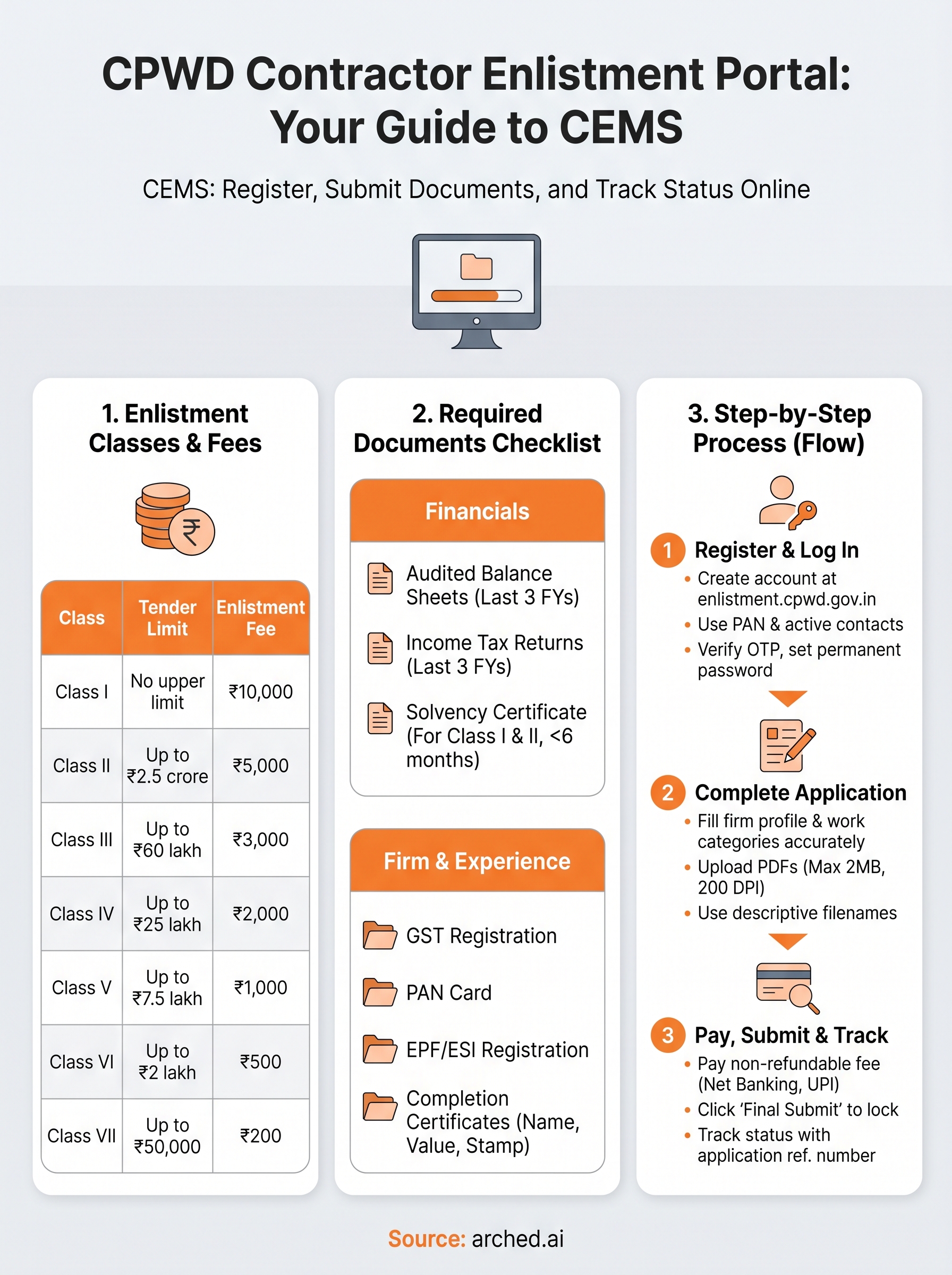
CPWD charges a non-refundable enlistment fee that varies by class. Payments process through the CEMS integrated gateway using net banking, debit card, or UPI. The table below lists the fees by class for civil works:
| Class | Enlistment Fee |
|---|---|
| Class I | ₹10,000 |
| Class II | ₹5,000 |
| Class III | ₹3,000 |
| Class IV | ₹2,000 |
| Class V | ₹1,000 |
| Class VI | ₹500 |
| Class VII | ₹200 |
Save your payment transaction ID immediately; you will need it if CPWD's system shows a pending status and you must raise a payment dispute.
Submit and track your application
Once payment clears, click "Final Submit" to lock your application and send it for review. Your dashboard then shows a unique application reference number that you use to track progress. CPWD typically reviews applications within 30 working days, and any query or request for additional documents appears directly in your CEMS inbox under the "Correspondence" tab.
Next steps
You now have a complete picture of how the cpwd contractor enlistment portal works, from account creation through payment and submission. Your immediate next step is to pull your financial documents and completion certificates together before you open CEMS, since having everything ready before you start prevents the mid-application delays that push review timelines past 30 working days.
Getting enlisted is the starting line, not the finish. Knowing which tenders match your class and documented experience is where most contractors lose time, manually checking portals and missing opportunities that closed before they could act. Arched monitors 500+ government procurement portals in real time, analyzes your credentials against active tenders, and flags the ones you are actually eligible to win. Your enlistment class, your registrations and your completion certificates all sit in your Vault, and Eligibility scores every opportunity against them.
If you are weighing up tooling more broadly, the guide to tender management software covers what the category actually includes and which parts matter for Indian public procurement.