Government e Marketplace Login: Official Portal & Steps
Follow our government e marketplace login guide to access the official portal. Learn to verify your identity, fix OTP errors, and manage your GeM dashboard.
The Government e Marketplace login portal is your gateway to India's largest public procurement platform, GeM. Whether you're a seller registering for the first time or a buyer managing procurement for a government department, getting past the login screen quickly and without issues is step one. But between OTP delays, browser quirks, and occasional portal downtime, even this basic step can eat into your day.
GeM currently hosts lakhs of sellers and thousands of buyer organizations across central and state government bodies. Every transaction, from placing a bid to uploading product catalogs, starts with a successful login. If you're locked out or stuck at registration, nothing else moves forward. That's lost time on a platform where tender deadlines don't wait.
This guide walks you through the exact steps to access the GeM portal, register as a buyer or seller, troubleshoot common login problems, and manage your account settings. No guesswork, no outdated screenshots, just the current process as it works in 2026.
At Arched, we help infrastructure firms and government contractors track opportunities across 500+ procurement portals, including GeM. We built this guide because our users deal with GeM daily, and a smooth login experience is the bare minimum needed before you can focus on what actually matters: finding and winning the right contracts.
What you need before you log in
Before you attempt a government e marketplace login, gather everything on this list. GeM's verification process ties directly to national identity systems, and missing even one document stalls your registration or account recovery. Spending five minutes preparing now saves you from bouncing between browser tabs mid-process.
For sellers: required documents and details
If you are registering or logging in as a seller, GeM links your account to your Aadhaar number and PAN as the primary identity anchors. The portal verifies both during registration, so they must be active and matching. Beyond identity, you will need supporting business documents before your account becomes fully functional.
Here is what sellers should keep ready:
- Aadhaar number (linked to an active mobile number for OTP delivery)
- PAN of the individual or business entity
- GSTIN (mandatory for most product and service categories)
- Bank account details (account number, IFSC code, and a cancelled cheque or bank statement)
- Business registration certificate (e.g., Certificate of Incorporation, partnership deed, or MSME Udyam registration)
- Digital Signature Certificate (DSC) if your organization requires one for bid submission
- Email address that you actively monitor, since GeM sends order alerts and compliance notices here
Your Aadhaar-linked mobile number is the single most critical item. If that number is inactive or changed, OTP delivery fails at multiple points in the GeM login and registration flow.
For buyers: required details and organizational access
Buyer accounts on GeM belong to government departments, PSUs, and autonomous bodies, not individuals. Before logging in, confirm with your department's GeM nodal officer whether your account already exists. If you are a new user being added under an existing organization, the Primary User (DDO) must first create your account from within their dashboard before you can do anything on the portal.
Keep the following ready:
- Official government email ID (usually a NIC email ending in gov.in or nic.in)
- Employee ID or service book number as issued by your department
- Organization's GeM Buyer ID (your DDO or procurement cell will have this)
- Mobile number registered with your department for OTP verification
- Aadhaar or designated employee identifier, depending on your department's configuration
Secondary buyers cannot self-register. Your DDO creates your login credentials, and you receive an activation link on your official email. If that activation link expires before you use it, you need the DDO to resend it from their admin panel.
Browser and device requirements
GeM works best on Google Chrome or Mozilla Firefox, both kept updated to the latest stable version. Internet Explorer is not supported, and older versions of Edge can cause rendering issues on the portal's document upload screens. Use a desktop or laptop rather than a mobile browser for anything beyond basic browsing, as bid submission and bulk uploads rely on components that do not work reliably on mobile.
Your internet connection needs to be stable before you start. GeM sessions time out after a period of inactivity, and a dropped connection during OTP verification or document upload can corrupt the submission and force you to restart from the beginning. If your office network uses a proxy or firewall, ask your IT team to whitelist gem.gov.in before you begin. Clearing your browser cache before each session also reduces stale session errors, which are a common complaint among users who log in to GeM multiple times per day.
Step 1. Use the official GeM login portal
The only URL you should ever use for a government e marketplace login is gem.gov.in. Bookmark that address directly in your browser now. Dozens of unofficial sites mimic GeM's layout to harvest credentials, and the visual difference is often hard to spot at a glance. Before you type anything, check your browser's address bar for a padlock icon and confirm the exact domain shows as gem.gov.in.
Find and verify the official URL
Typing "GeM login" into a search engine frequently surfaces sponsored results and third-party aggregator sites above the actual portal. Scroll past any ad at the top and click only the result whose URL shows gem.gov.in. Once you land on the page, look for the National Public Procurement Portal branding in the header alongside the Government of India seal. If either element is missing, close the tab and type the URL directly into your address bar instead of using any link.
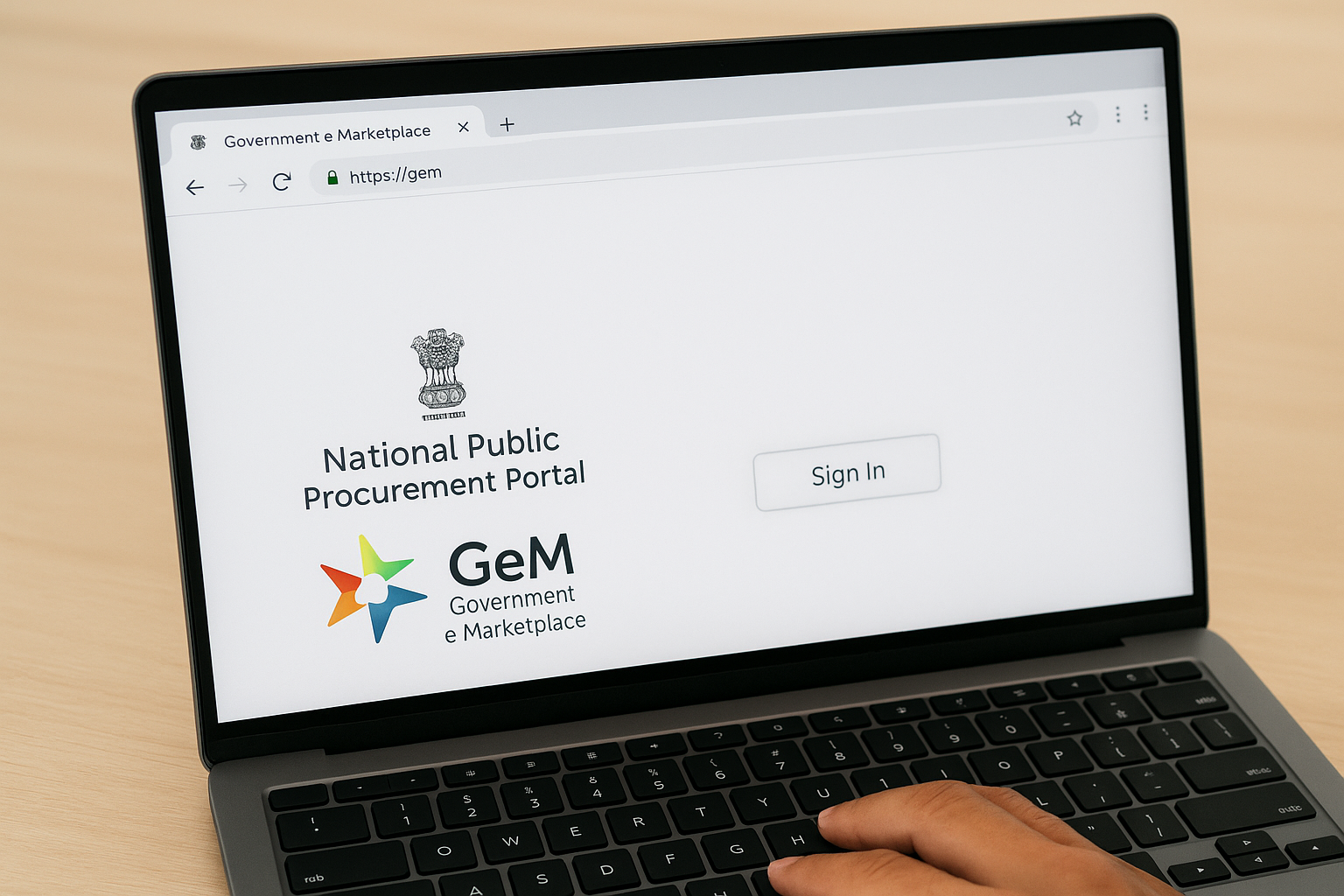
Always access GeM by typing gem.gov.in directly into your browser's address bar rather than clicking links sent via email, SMS, or messaging apps.
Use this table to confirm you are on the legitimate portal before entering any details:
| Element to check | What it should show |
|---|---|
| Browser address bar | https://gem.gov.in |
| Page title (browser tab) | Government e Marketplace |
| Header branding | National Public Procurement Portal |
| SSL padlock status | Locked and verified |
Navigate to the login screen
Once you are on the GeM homepage, look at the top-right corner of the page. You will see two buttons side by side: "Sign In" for existing accounts and "Sign Up" for new registrations. Click "Sign In" to proceed. The portal then presents a screen asking you to identify yourself as either a Buyer or a Seller before loading the relevant login form.
Choosing the wrong user type does not lock your account, but it does send you to the wrong dashboard and you will need to log out and restart. After selecting the correct type, the form asks for your registered mobile number or email address, followed by an OTP or password depending on how your account is configured. Keep your registered mobile phone within reach, as OTPs typically arrive within 30 to 60 seconds on a stable connection.
Step 2. Log in as a buyer and set up users
Buyer access on GeM works differently from seller access. Your account belongs to your government organization, not to you personally, which means the login flow involves organizational verification at multiple points. Before you enter any credentials, confirm that your DDO (Drawing and Disbursing Officer) has already created your user profile. Without that step, the portal will not recognize your credentials regardless of what you enter.
Access the buyer login form
On the GeM homepage at gem.gov.in, click "Sign In" in the top-right corner, then select "Buyer" when the portal asks for your user type. The buyer login form asks for your registered email ID or mobile number, not your employee ID. Enter the contact detail your DDO used when setting up your account. The portal then sends a one-time password (OTP) to that number or email, which you enter on the next screen to complete verification.
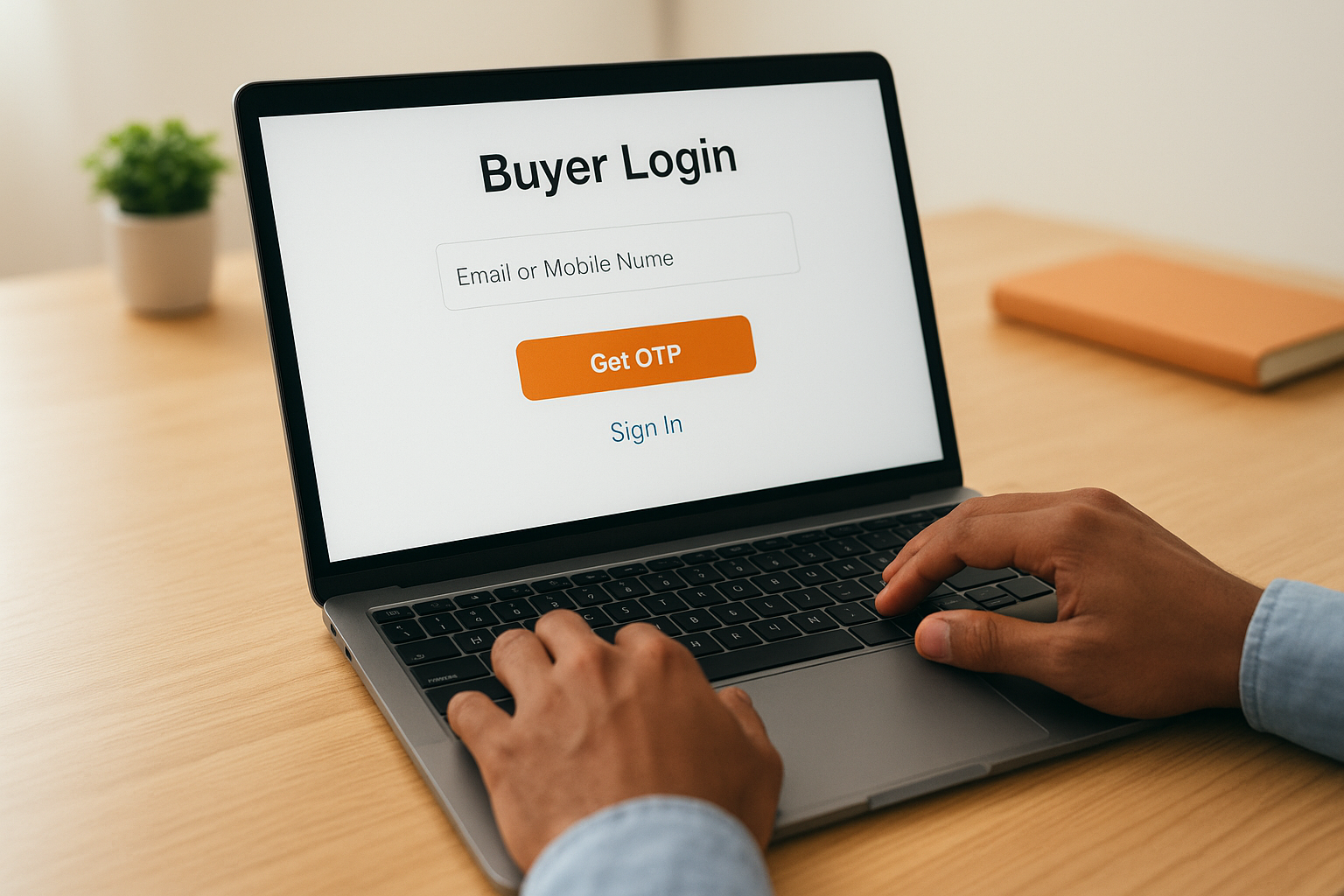
Follow these steps in order once the buyer login form loads:
- Enter your registered email or mobile number in the first field
- Click "Get OTP" and wait up to 60 seconds for delivery
- Type the OTP into the verification field without spaces
- Click "Login" to reach the buyer dashboard
If your OTP does not arrive within 90 seconds, check that your email spam folder is clear and that your registered mobile number is active before requesting a fresh OTP.
Add secondary users from the buyer dashboard
Once you complete your government e marketplace login as a primary buyer, you can add secondary users directly from the admin panel inside your dashboard. This matters for departments where multiple team members need procurement access. Navigate to "User Management" in the left sidebar of your buyer dashboard. Click "Add New User," fill in the secondary user's name, official email, and employee designation, then click "Send Invitation."
The secondary user receives an activation link on their official email. That link expires in 24 hours, so inform your team member immediately after you send the invitation. Use this reference table to understand the two buyer access levels:
| User type | Can do | Cannot do |
|---|---|---|
| Primary User (DDO) | Create users, approve orders, manage settings | Nothing restricted |
| Secondary User | Search tenders, raise indent, track orders | Create other users, change org settings |
Step 3. Log in as a seller and reach the dashboard
Seller accounts on GeM use Aadhaar-based verification as the foundation of the login flow, which makes the process slightly different from buyer access. Your registered mobile number tied to Aadhaar is the key here, not just any number you have on file. Before you start, confirm that the mobile number you used during seller registration is active and receiving SMS messages.
Complete the seller login steps
On the GeM homepage at gem.gov.in, click "Sign In" in the top-right corner, then select "Seller" when the portal prompts you to identify your user type. The system loads a login form specific to sellers, where you enter your registered mobile number or email address linked to your GeM seller account. Unlike buyer accounts that are managed by a DDO, your seller account is tied directly to your individual Aadhaar identity, so the credentials belong to you alone.
Follow these steps in exact order to complete your government e marketplace login as a seller:
- Enter your registered mobile number or email in the login field
- Click "Get OTP" and keep your phone ready
- Enter the six-digit OTP within the 3-minute validity window
- Click "Login" to proceed to your seller dashboard
- If prompted for a secondary password, enter the one you set during registration
Never share your GeM seller OTP with anyone, including people claiming to be GeM support staff, since GeM will never ask for your OTP over a phone call.
Navigate your seller dashboard
Once you clear the login screen, GeM takes you directly to your seller dashboard, which functions as your primary control panel for all procurement activity. The dashboard displays your active product listings, pending orders, bid status, and compliance alerts in a single view. Take a moment to scan the notification panel at the top, since GeM uses that space to flag any document renewal deadlines or catalog rejections that need your attention before you can transact.
The left sidebar contains your core navigation. Use "My Products" to manage your catalog, "My Orders" to track current purchase orders, and "My Bids" to monitor any ongoing tender participation. Your account compliance score appears on the main dashboard panel and affects how prominently your listings appear in buyer searches, so check it on every login.
Step 4. Reset password, fix OTP, and unlock access
Login failures on GeM almost always trace back to three causes: a forgotten password, an OTP that never arrives, or an account flagged for suspicious activity. None of these lock you out permanently, but each one requires a specific fix. Working through the wrong solution wastes time, so identify your exact error message before you start.
Reset your GeM password
When you forget your password, use the "Forgot Password" link on the GeM login screen rather than contacting support as your first step. Click the link, enter your registered email address or mobile number, and GeM sends a reset link or OTP to that contact. Follow the link, create a new password that meets GeM's requirements (minimum eight characters, at least one uppercase letter, one number, and one special character), and confirm it. Your session resets immediately.
Use this checklist to complete the password reset without errors:
- Enter the exact email or mobile number you used during registration
- Check your spam or promotions folder if the reset email does not appear within two minutes
- Use the reset link within 15 minutes before it expires
- Avoid reusing your last three passwords, since GeM blocks password repetition
- Log in immediately after resetting to confirm the new credentials work
Fix OTP delivery issues
OTP problems are the most common barrier to completing a government e marketplace login, and they usually have a simple cause. Before you request a new OTP, check whether your Aadhaar-linked mobile number is active and has network signal. A number that has been inactive for more than 90 days often gets deregistered from the OTP delivery system even if GeM still shows it on file.
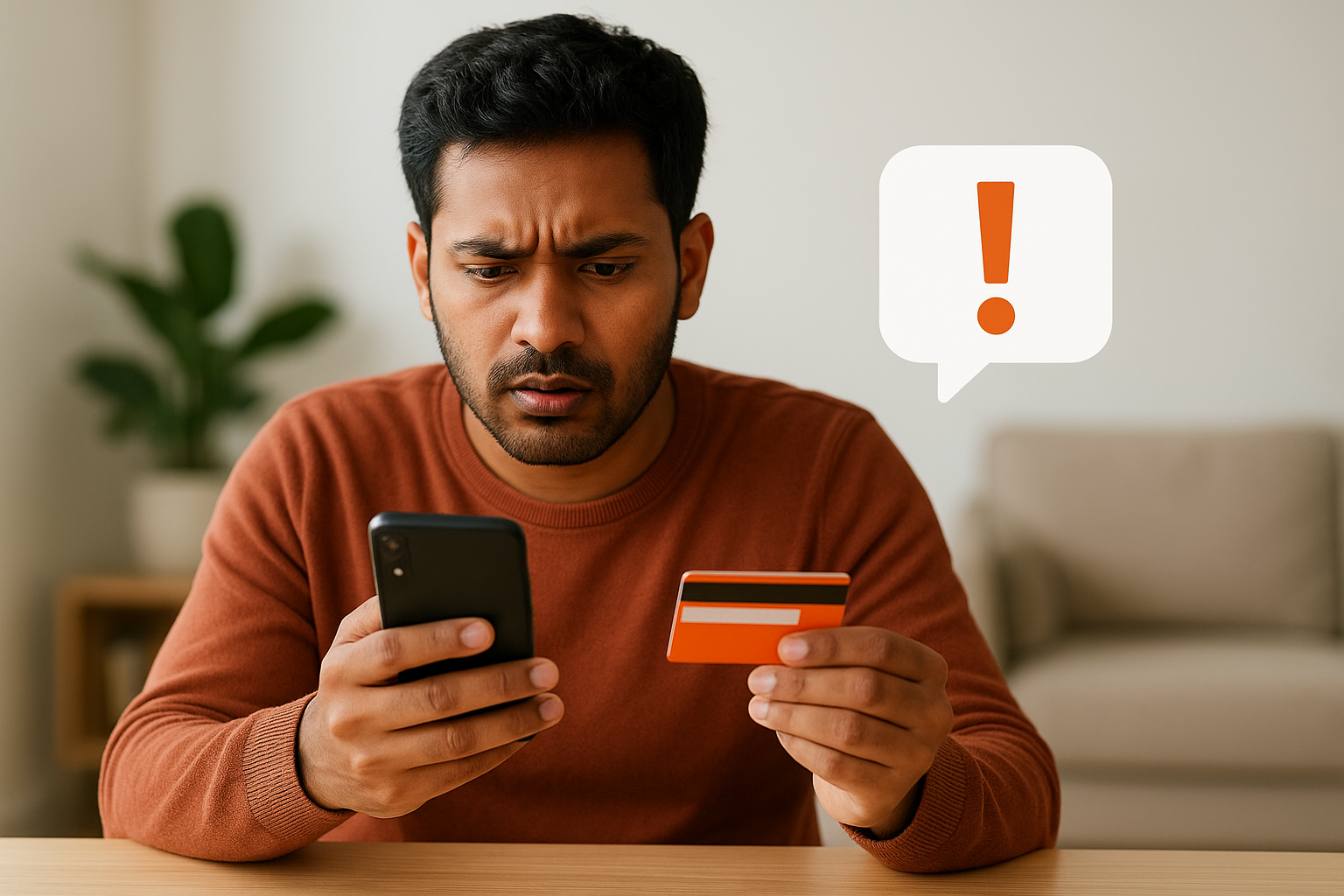
If your OTP consistently fails to arrive, contact your mobile carrier first to confirm the number is active, then update your registered number inside your GeM profile before requesting another OTP.
If your number is active but OTPs still fail, try these fixes in order:
- Restart your phone to clear any network congestion blocking incoming SMS
- Disable Do Not Disturb mode, which blocks SMS on many devices
- Switch from Wi-Fi calling to cellular if your device uses Wi-Fi for calls and SMS
- Request the OTP again after waiting at least 90 seconds from the previous attempt
- Use the email OTP option as a fallback if your mobile number is temporarily unreachable
If your account is locked after multiple failed attempts, wait 30 minutes before trying again, since GeM applies a temporary cooldown automatically rather than a permanent ban.
Step 5. Register on GeM if you do not have an account
If you have never created a GeM account, registration is the step that happens before any government e marketplace login attempt. GeM runs separate registration flows for buyers and sellers, and completing the wrong one means starting over. Identify your role before you open the portal, then follow the path that matches your situation.
Register as a seller on GeM
Seller registration on GeM starts at gem.gov.in, where you click "Sign Up" in the top-right corner and then select "Seller." The portal begins by verifying your identity through Aadhaar-based OTP authentication, so have your Aadhaar number and the linked mobile phone ready before you start. Once your identity clears, GeM prompts you to enter your PAN, GSTIN, and bank account details in sequence.
Complete all registration steps in a single session where possible, since partially saved registrations occasionally fail to resume correctly after a browser timeout.
Follow these steps to complete seller registration without interruption:
- Go to gem.gov.in and click "Sign Up," then choose "Seller"
- Enter your Aadhaar number and verify with the OTP sent to your linked mobile
- Fill in your PAN and allow GeM to fetch your name automatically from the Income Tax database
- Enter your GSTIN and confirm your business category
- Add your bank account number and IFSC code for payment processing
- Upload your business registration certificate and any applicable MSME Udyam certificate
- Set a strong account password and confirm your registered email address
- Submit the form and wait for the verification email from GeM to activate your account
Register as a buyer on GeM
Buyer registration works differently from seller registration because government organizations, not individuals, hold buyer accounts on GeM. If your department already has a GeM presence, contact your DDO or procurement nodal officer directly and ask them to add you as a secondary user from within the admin panel. You do not need to self-register in that case.
If your department is new to GeM entirely, the head of the organization must write to the GeM support team at helpdesk.gem.gov.in to initiate a new organizational account. Your department will receive a Primary User credential after verification, and secondary users get added from there. Individual employees cannot create buyer accounts independently, so coordinate with your finance or procurement cell to confirm your department's current status before attempting any registration on your own.
Quick wrap-up
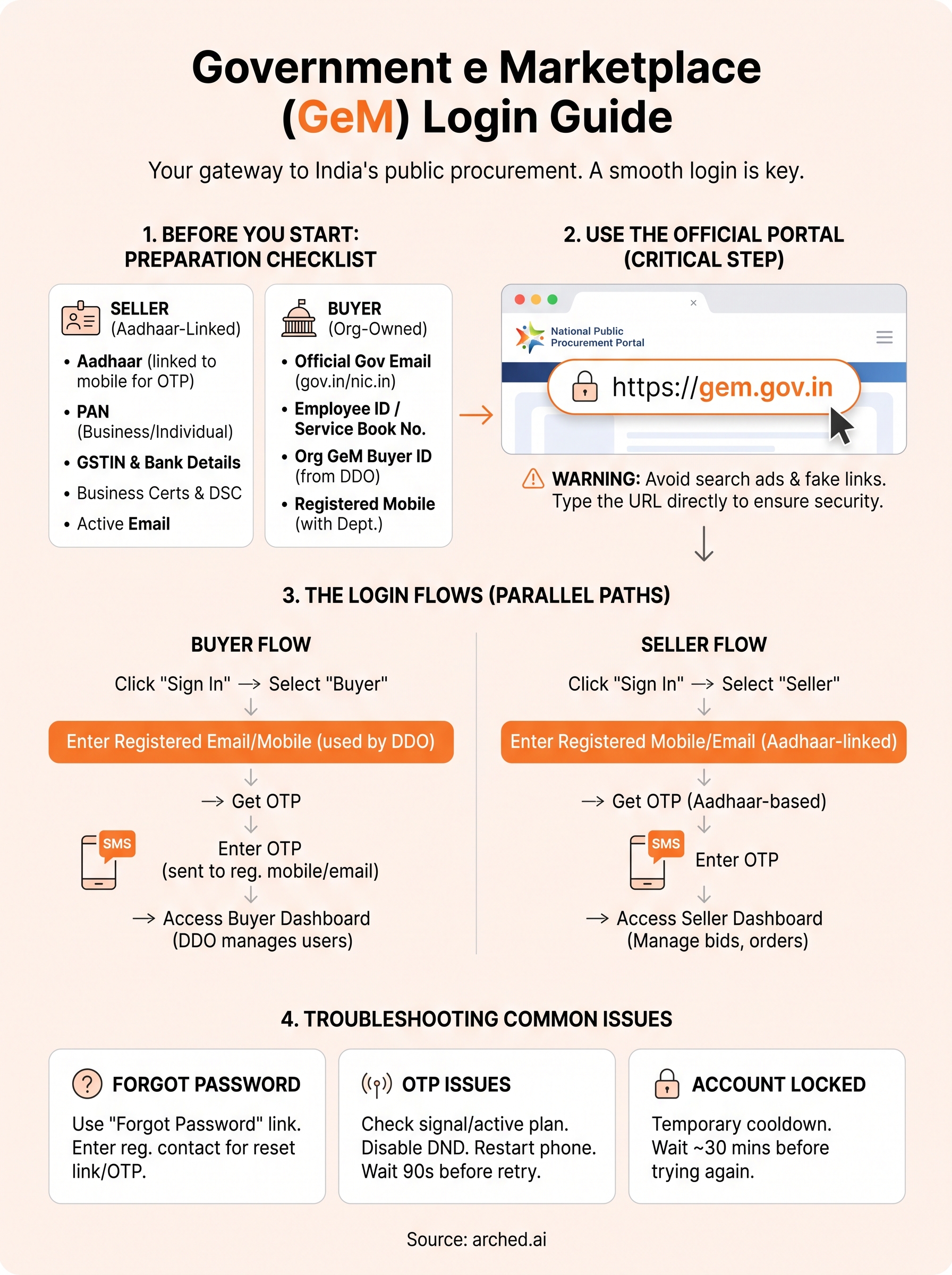
Getting through the government e marketplace login process comes down to preparation. You need the right documents ready before you start, the correct URL (gem.gov.in) bookmarked in your browser, and a clear understanding of whether you are entering as a buyer or a seller. Follow the steps in this guide in order, and most login, OTP, and registration issues resolve without needing to contact GeM support.
GeM is one portal among hundreds that government contractors and infrastructure firms need to monitor. Staying on top of active tenders, bid deadlines, and new opportunities across all those portals manually is where time and revenue get lost. Arched helps you cut that effort by tracking over 500 procurement portals simultaneously, matching tenders to your firm's actual eligibility, and surfacing the bids worth your attention. If you want to see how that works in practice, explore the Arched platform and put your BD time to better use.